
What is a Password Manager?
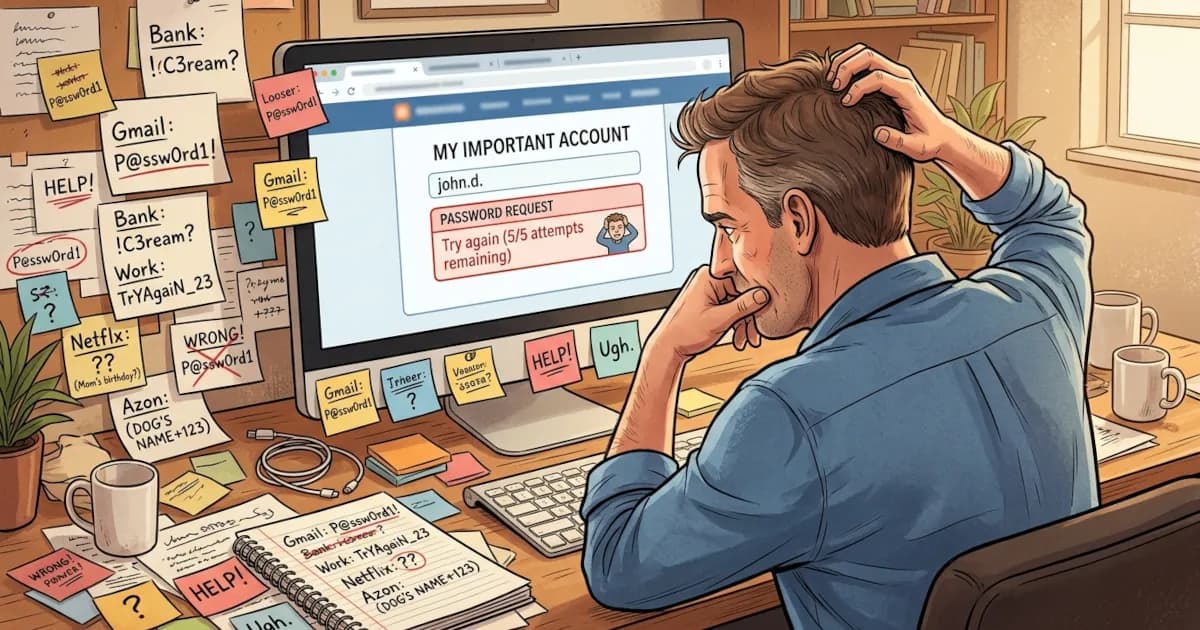
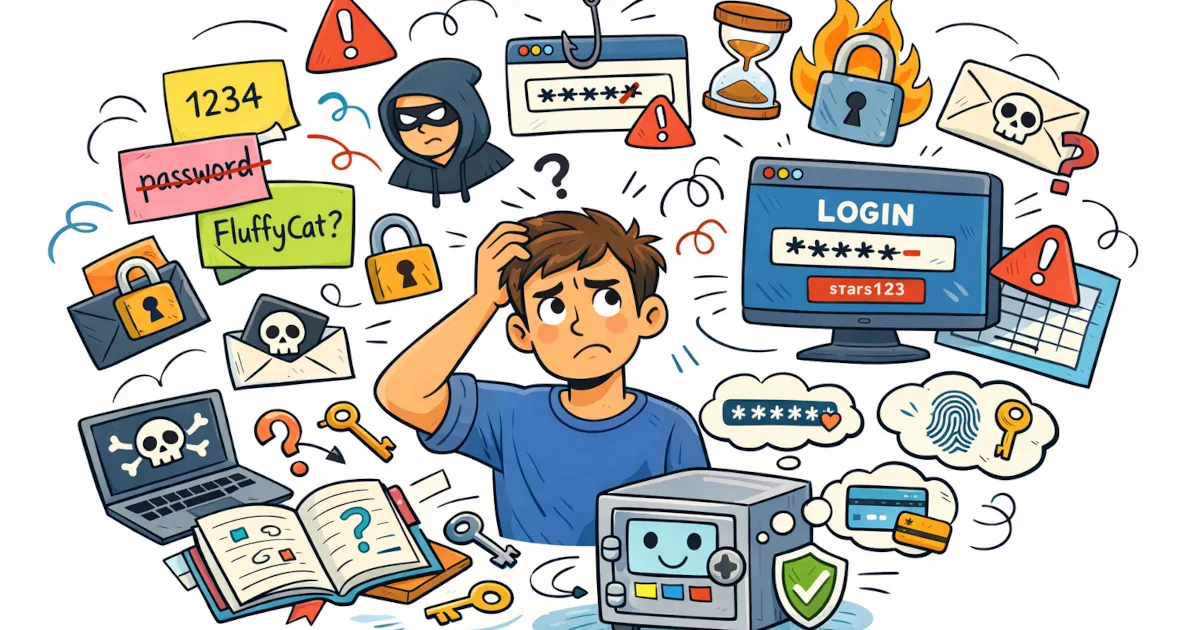
If you have ever forgotten a password five minutes after creating it, or you still use the same password for all your accounts (no judgment, we've all been there), it might be time to meet the password manager.
Password managers keep your digital life locked down with encryption and a few easy-to-use features. You don't need a technical background to follow how they work, though a little geek speak is hard to avoid.
A Password Manager, Defined
A password manager works like a digital vault for your passwords.
Instead of trying to remember the 28 passwords you’ve made over the years (or worse, using "password123"), a password manager stores all of them for you. You only need to remember one strong master password and the manager handles the rest.
How Do Password Managers Keep Your Data Safe?
Password managers lock your passwords away with strong encryption, along with a couple of other safeguards.
1. AES-256 Encryption (aka the Fort Knox of Security)
Most password managers use AES-256 (Advanced Encryption Standard) to scramble your data. Even if someone managed to sneak into the system, all they'd see would be unreadable gibberish.
AES-256 is strong enough that the U.S. government uses it to protect classified information. Your Netflix login might be better protected than some state secrets.
2. Zero-Knowledge Architecture
Most of the better password managers also use zero-knowledge architecture. This means even the company itself can't see your passwords or data.
So if the password manager got hacked (it does happen), there would be nothing useful for hackers to steal. Your data is encrypted on your device before it leaves, so nobody but you can decrypt it.
3. Biometric and 2FA Support
Current managers offer biometric login (like fingerprint or face recognition) and two-factor authentication (2FA) as extra layers of protection. It's a bit like adding retina scans and voice recognition to your email and Instagram.
What Features Should You Look For?
Password managers differ. When choosing one, look for these features:
- Cross-platform support: Works on PC, Mac, iOS, Android, etc.
- Password generator: Creates strong, unique passwords for each account.
- Secure sharing: Lets you share specific login details without sending passwords via text/email.
- Auto-fill: Makes logging in to websites and apps quick.
- Dark web monitoring: Alerts you if your passwords are floating around the shady parts of the internet (creepy, but useful).
Why You Should Use a Password Manager (Like, Right Now)
The main benefits of password managers:
1. No More Forgotten Passwords
You never have to memorize “BlueTiger!47#&”.
2. Maximum Security Across All Accounts
Each login gets a unique, very strong password. If one account gets hacked, your others stay safe.
3. Easy Access
Log into your accounts with one click from your phone, laptop, or even your smart fridge (okay, maybe not that last one… yet).
4. Time Saver
You spend less time resetting passwords and less time worrying about security.
5. Peace of Mind
You’ve taken a big step toward securing your digital identity.
But Wait… Are Password Managers Safe?
You might ask what happens if someone hacks the password manager itself.
Encryption and zero-knowledge architecture cover that case. Even in the (extremely rare) event of a breach, your encrypted data is useless without your master password. Nobody else knows that password. The company doesn't either.
Remember: your master password should be strong and unique. Don't base it on a birthday or a pet's name. Never use something like “letmein”.
Tip: Create a passphrase like “RedPizza@MoonDance2024!”. Better still, use the manager's generator tool and commit your master password to memory.
Getting Started Is Easy
To start using a password manager today:
- Pick one from our reviews.
- Download the app on your devices.
- Create your master password. Make it strong and memorable.
- Import or add your passwords (some can scan your browser and import them automatically).
- Enable 2FA for extra security.
- Relax, knowing your data is protected.
It changes how you deal with logins every day.
Why It's Worth It
Using a password manager is one of the easiest and smartest things you can do to protect your digital life. It takes little effort and it works.
You can stop juggling sticky notes, forgotten logins and weak passwords. Good security can be simple.
If you like digital security explained in easy steps like this, subscribe to our channel for more guides and tips.
Stay safe out there.