
Password Managers for Beginners Fully Explained
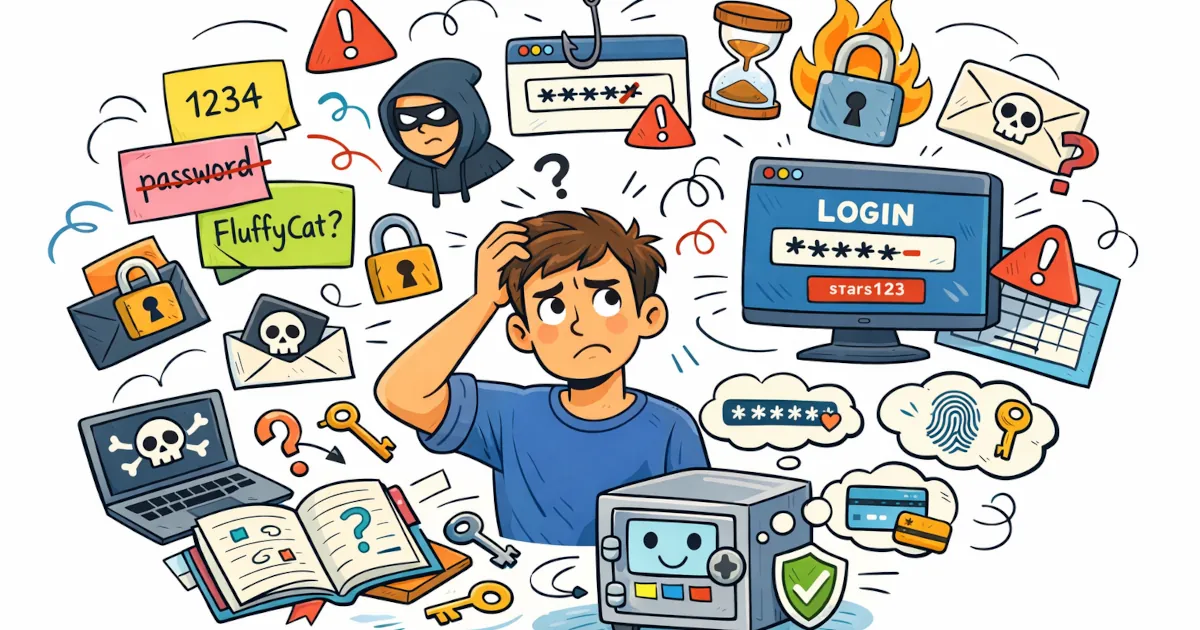
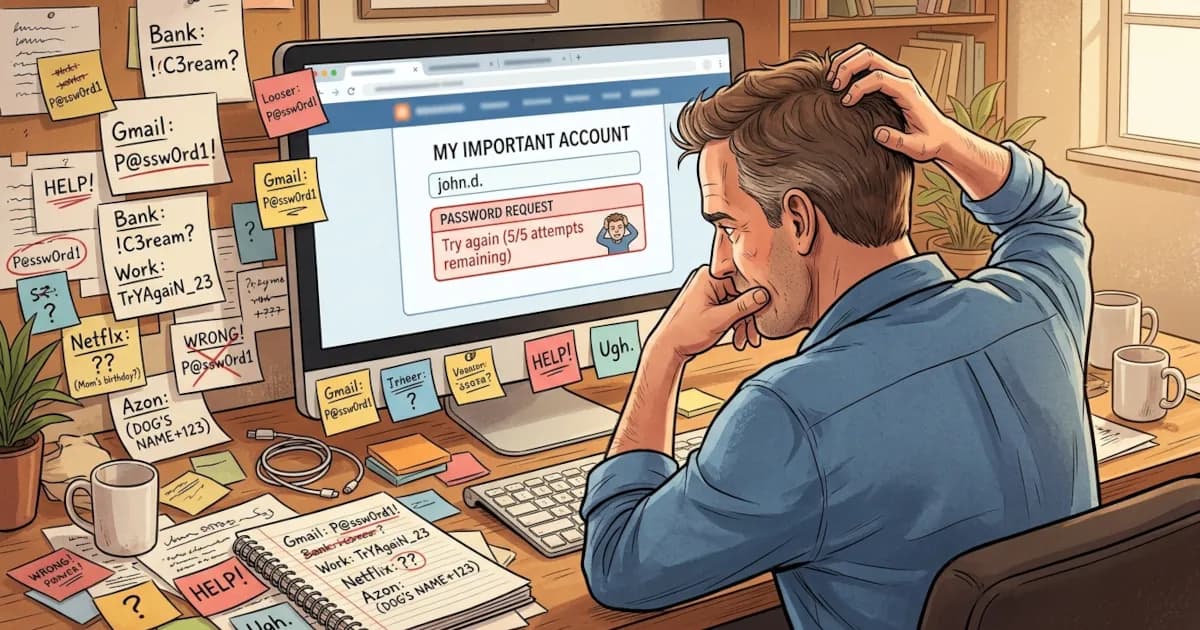
If you’ve ever forgotten a password, reused the same one everywhere or felt nervous typing your details into yet another website, a password manager can help.
Here are the password manager basics for first time users in plain language. You don’t need a tech degree.
What Is a Password Manager?
A password manager is an app (or browser extension) that:
- Stores all your passwords in one secure place
- Creates strong, unique passwords for every site
- Automatically fills them in when you log in
Think of it as a highly secure notebook that you lock with one strong key. That key is called your master password.
Once you open the manager with your master password, it logs you in and generates passwords for you. It also keeps everything tidy.
Why You Should Stop Reusing the Same Password
Most people do this:
One main password + tiny changes (123, !, year, etc.) for every site
It feels easier, but it creates a huge problem:
- If one site gets hacked and your password leaks
- Hackers can try that same email+password combo everywhere
- Email, Facebook, banking and shopping accounts are all at risk
A password manager fixes this by helping you use:
- A different password for every account
- Long, random passwords that are hard to guess
- Without you needing to remember any of them.
How a Password Manager Keeps Things Secure
Here’s the basic security idea, with as little jargon as possible:
You create one strong master password
This is the only password you must remember.The password manager uses that to encrypt your vault
Think of it as scrambling your data so no one can read it without the key.Your passwords are stored encrypted, even on the company’s servers (for reputable managers).
So if they get hacked, attackers see scrambled nonsense.When you log in with your master password, everything is decrypted locally on your device so you can use it.
The password manager company typically can’t see your passwords. They store the encrypted vault. Your master password opens it on your side.
Features to Look For (Beginner-Friendly)
When you’re choosing a password manager for the first time, look for these features:
Strong password generator
Creates long, random passwords likeT4m!cQ^9hU*2zso you don’t have to.Autosave and autofill
It should ask to save new logins when you sign up and fill them in when you come back.Sync across devices
Use your passwords on your laptop or desktop as well as your phone and tablet.Secure notes
Store things like Wi-Fi passwords, software license keys, safe combinations and backup codes.Two-factor authentication (2FA) support
Some managers can also store one-time codes, which adds another layer of security to your accounts.
If you see these features, you’re in good hands as a beginner.
Free vs Paid Password Managers
You don’t have to spend money right away. Many password managers offer:
Free version
Stores your passwords for use on at least one device, with basic autofill and a password generator.Paid version
Syncs to unlimited devices and adds family sharing. It also includes extra security features (like security reports or dark web monitoring).
For first-time users, the free plan is usually enough to get started and see if you like it.
How to Start Using a Password Manager
Follow this simple setup path the first time.
1. Pick a Password Manager
Choose a well-known, reputable manager. Search for “best password managers” and pick one that:
- Works on your devices (Windows, Mac, Android, iPhone, etc.)
- Has a good free tier, if you’re starting simple
- Has strong reviews and clear security documentation
Don’t overthink it. Starting with any trusted one is better than using none.
2. Install It Everywhere You Use the Internet
- Install the mobile app on your phone
- Install the desktop app (if available)
- Add the browser extension (Chrome, Edge, Firefox, Safari, etc.)
This makes sure it can catch and fill your passwords as you go.
3. Create Your Master Password (Make It Strong)
Your master password protects everything else. It should be:
- Long (at least 12-16 characters)
- Easy for you to remember
- Hard for others to guess
A useful trick: use a passphrase. For example:
green-hill-radio-piano-summer
orMyFirstDogWasNamedLucky!2007
Avoid:
- Names of family members
- Birthdays
- Simple patterns like
Password123!
Write it down once on paper and store it somewhere safe while you’re getting used to it, then destroy the note when you’re confident you’ve memorized it.
4. Start Saving Logins as You Use Them
You don’t have to move every password at once.
Instead, do it gradually:
- Log in to a site you already use (email, Netflix, social media).
- When the manager asks “Save this password?”, click Yes.
- Next time you visit that site, let the manager autofill it.
Over a few days or weeks, your vault will naturally fill up.
5. Start Upgrading Weak Passwords
Once a few accounts are in your manager, begin upgrading:
- Choose an important account (email, bank, main shopping site).
- Go to its Change Password page.
- Let your manager generate a strong password.
- Save it in the manager when it prompts you.
Do this slowly, starting with:
- Email accounts
- Financial accounts (banks, PayPal, etc.)
- Any account with stored payment details
You don’t need to fix everything in one day.
What If I Forget My Master Password?
Two things to know:
- Your master password usually cannot be reset by the company, because they don’t know it.
- Forgetting it means you lose access to your vault in many systems.
To avoid that:
- Pick a master password that’s strong but memorable.
- Consider writing it down and keeping it somewhere secure, such as in a safe or with important documents.
- Say it in your head often as you log in for the first few days to build the habit.
Once it’s locked in your memory, you’re set.
Are Password Managers Safe?
Nothing is 100% perfect, but for most people:
- Using a reputable password manager
- With a strong master password
- And different passwords for every account
is far safer than:
- Reusing the same password
- Using short or simple passwords
- Storing them in a notes app, email draft, or paper notebook in your bag
Security professionals, developers and big companies all use password managers. That alone is a good sign they’re worth using.
Bonus: Add Two-Factor Authentication (2FA)
Once you’re comfortable with the basics, add a second layer:
- Turn on 2FA for important accounts (email, banking, social media).
- This means when you log in, you need your password plus a one-time code (via app, text, or hardware key).
Even if someone steals your password, they still can’t get in without that second factor.
Many password managers can store or generate these codes too, which keeps things simpler.
Your Next Simple Steps
To recap, here’s the plan for beginners:
- Pick a reputable password manager.
- Install it on your phone and browser.
- Create a strong, memorable master password.
- Save passwords as you log in like normal.
- Slowly replace weak passwords with long, random ones generated by the manager.
- Turn on 2FA for your most important accounts.
Spread this over a week or two. You’ll be miles ahead of most people in online security, with only one password to memorize.