
What Is a Password Manager Explained Simply
If someone told you to use a password manager and never explained what one is, this guide is for you.
It’s written for people who want to stay safe online without turning into IT support. It uses plain language and avoids jargon.
The Problem: Too Many Passwords, Not Enough Brain
Think about all the accounts you have:
- Banking
- Shopping sites
- Streaming services
- Social media
- Work accounts
Each one should have its own unique, strong password.
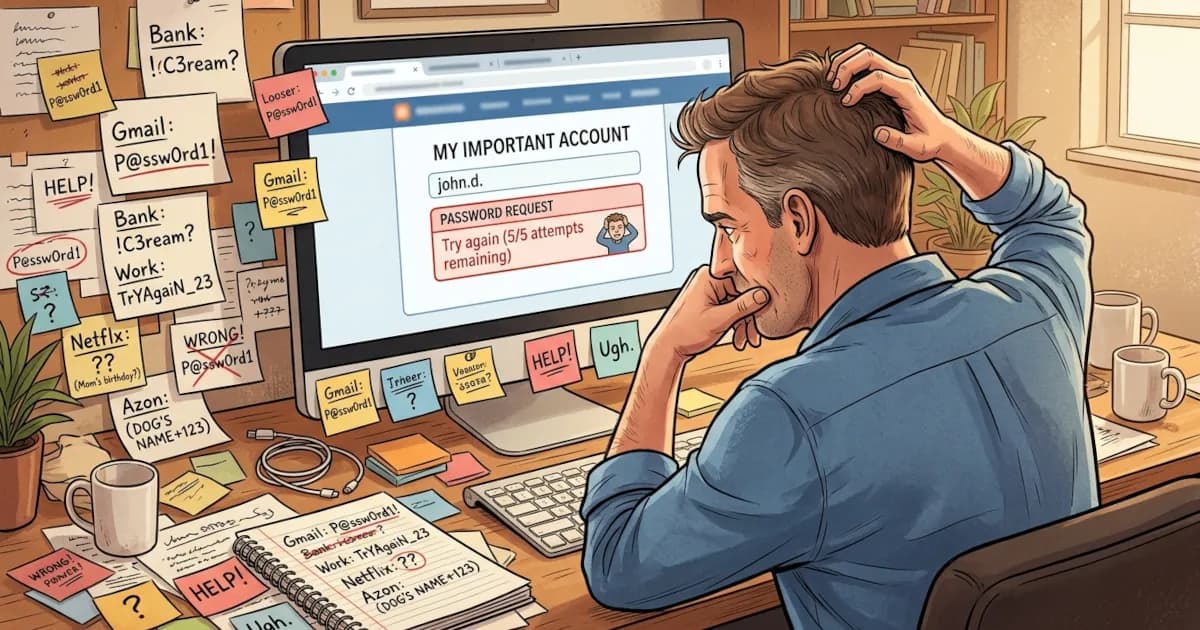
But most people do this instead:
- Reuse the same password everywhere
- Add a “1” or “!” at the end when forced to change it
- Use easy stuff like pet names, birthdays, or “Password123”
- Forget half of them and click “Forgot your password?” constantly
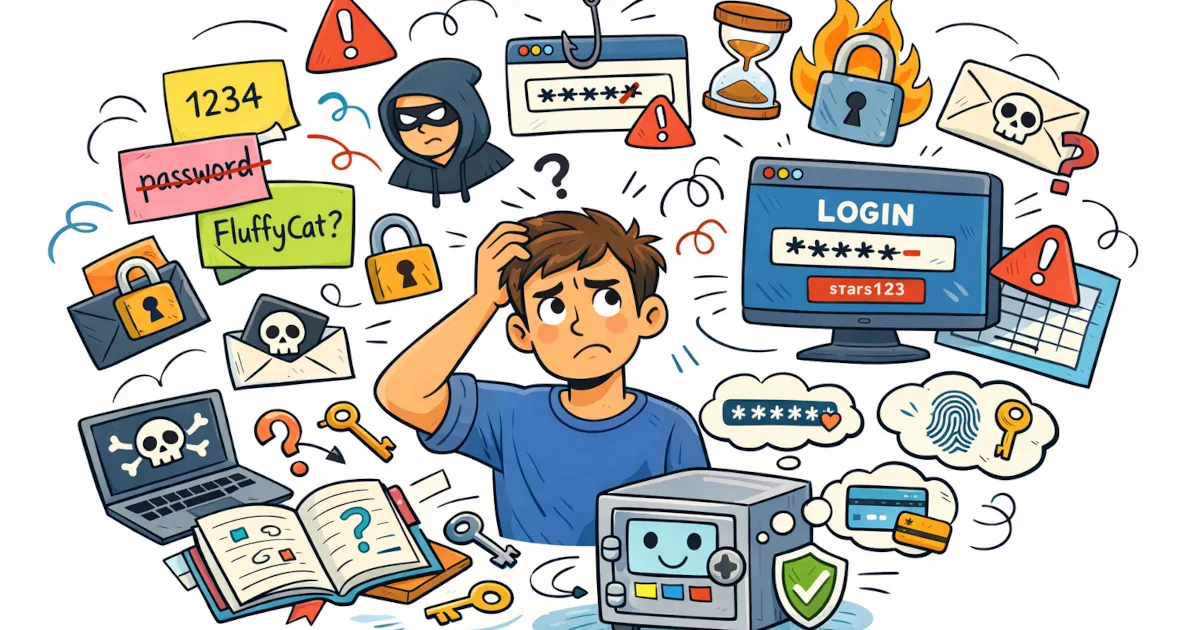
That’s understandable. Human memory can’t hold dozens (or hundreds) of long, random passwords.
Hackers know this. If one site gets breached and your password leaks, they try that same email and password on other sites. If you reuse passwords, one leak can turn into a lot of stolen accounts.
Password managers solve this problem.
What Is a Password Manager?
Simple definition:
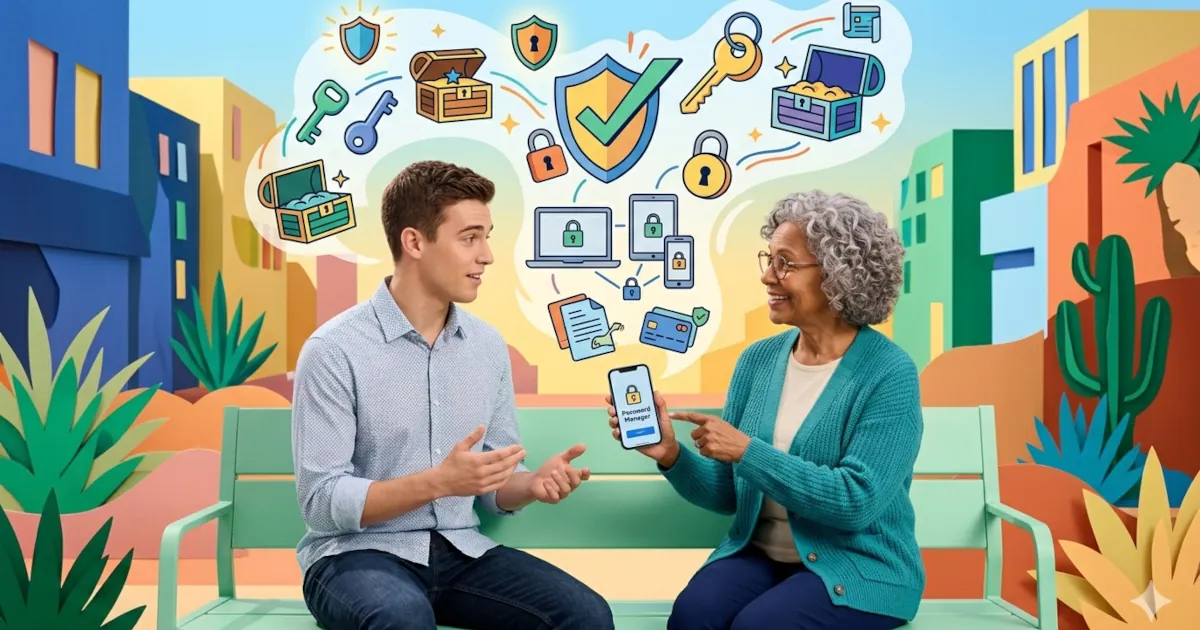
A password manager is an app that remembers all your passwords for you and keeps them locked in one secure place.
You only need to remember one strong password:
your master password.
The password manager remembers everything else.
You can think of it as:
- A locked digital notebook
- A “vault” where all your logins live
- A memory that doesn’t forget
How a Password Manager Works (In Normal Language)
Step by step, this is what happens.
1. You install it
You either:
- Download an app on your phone or computer, and/or
- Add a browser extension (Chrome, Edge, Firefox, Safari, etc.)
Names you’re likely to come across (this list isn’t an endorsement):
- 1Password
- Bitwarden
- Dashlane
- LastPass
- NordPass
- Built-in managers like iCloud Keychain (Apple) or Google Password Manager
2. You create a master password
This is the only password you have to remember. It:
- Opens your password vault
- Should be long and unique (a phrase works well)
- Must not be used anywhere else
Example of a stronger master password style (don’t use this exact one):
correct horse jacket thunder movie rain
A long, fairly random phrase that you can remember is a good choice.
3. It stores your logins in an encrypted vault
Every username and password you save goes into a vault.
Encrypted means:
- The data is locked up using strong mathematics
- It can’t be read without your master password
- Even the company hosting the vault can’t see your passwords if it’s properly designed
If someone stole the file containing your vault, they’d see only scrambled nonsense.
4. It fills in passwords for you
Next time you log in to a site:
- Your password manager recognizes the site
- Offers to fill in your username and password
- You click once and you’re logged in
You don’t have to type the password or guess which version of it you used.
5. It can generate strong new passwords
Whenever you create a new account or change a password, the manager can:
- Generate a long, random password like:
S!4pZg8%9@Lm2#rT - Save it automatically in your vault
You don’t have to memorize it, because the manager keeps it for you.
Why Bother Using a Password Manager?
You might wonder why you can’t just write your passwords in a notebook. This is what a password manager gives you instead.
1. Strong, unique passwords for every site
With a password manager:
- Each account can have a different, strong password
- If one site is hacked, only that password is at risk
- Your other accounts stay safe
With reused passwords, one leak can expose every account that shares that password.
2. You only remember one main password
No more:
- “Was it DogName2022 or DogName2023?”
- Resetting your password every other login
- Keeping sketchy password lists in Notes or on sticky notes
You just:
- Remember the master password
- Let the manager remember the rest
3. Faster logins, less frustration
- One click or tap to fill in login details
- Works across many devices (phone, laptop, tablet)
- You can stop playing “guess the password” with every website
4. Better than your browser alone
Browsers like Chrome and Safari already offer to save your passwords. That’s useful, but a dedicated password manager usually adds:
- Better security features
- Easier password sharing (for families, teams)
- Cross-browser, cross-device support
- Security alerts if a site you use is breached
Built-in managers are fine for many people. A dedicated one gives you more control and more features.
Is It Safe to Put All Passwords in One Place?
This is the big worry:
“What if someone hacks my password manager? Doesn’t that give them everything?”
It’s a reasonable worry. The answer depends on how a password manager protects your data.
How your vault is protected
A decent password manager:
- Encrypts your data before it leaves your device
- Never knows your master password
- Can’t read your vault even if the company wanted to
So if someone hacks the company’s servers, all they get is encrypted data they can’t read without your master password.
Your part:
- Choose a strong master password
- Turn on two-factor authentication (2FA) for your password manager account if it supports it
Nothing is 100% unbreakable forever. Still, a password manager used properly is much safer than reusing simple passwords or storing them in plain text.
Security experts and privacy advocates use password managers themselves, as do tech professionals.
Simple Tips for Getting Started
If you want to try a password manager, this is an easy way to begin.
1. Pick one tool and stick with it for now
Look for:
- Good reputation and reviews
- Cross-device support (phone + computer)
- Clear privacy/security explanations
Free options exist. Paid ones often add helpful extras, but you don’t have to start on a paid plan.
2. Create a strong master password
Use:
- A long phrase you can remember
- Something unique that you don’t use anywhere else
- Not personal info like birthdays or pet names alone
If you’re worried about forgetting it at first, write it down carefully and keep it somewhere physically safe.
3. Let it save as you go
You don’t have to move all passwords in one day.
- Every time you log into a site, let the manager save it
- Over time, your vault fills up on its own
- Gradually change weak/reused passwords to strong, unique ones using the generator
4. Turn on two-factor authentication (2FA)
If the password manager supports it:
- Use an authenticator app or hardware key if possible
- This adds a second step when you log in, which makes your vault harder to break into
Quick FAQ
Q: I keep my passwords in a notebook. Is that so bad?
A: A locked, hidden notebook is better than reusing one weak password everywhere. But if it’s lost, stolen, or seen by someone, nothing protects what’s written in it. A password manager encrypts everything.
Q: I’m worried I’ll forget my master password. What happens if I do?
A: With many password managers it can’t be reset for you. That is deliberate and part of how they stay secure. Some tools offer recovery options, so read their instructions carefully. Treat your master password like the key to every account you own.
Q: I’m not very technical. Is this too complicated for me?
A: Once it’s set up, daily use is simple: you click and it fills in your login. Setting it up takes the most effort. If you can use a banking app, you can use a password manager.
Summary
A password manager is:
- A secure vault for your logins
- A tool that creates and remembers strong passwords for you
- One of the easiest ways to improve your online security
Instead of trying to remember 50 weak passwords, you remember one strong one and the password manager stores the rest.
If you want more simple security tips like this, subscribe or follow us.