
How Password Managers Work Across Devices
You’ve probably been told to use a password manager.
The next question is how it knows your logins on your phone, laptop and tablet without exposing them to anyone else.
The answer is encryption plus syncing. Neither needs much jargon to explain.
First: What is a Password Manager?
Think of a password manager as:
- A locked notebook
- That lives in an encrypted vault
- Which only opens with one master key (your master password or passphrase)
You store:
- Logins (email + password)
- Security questions
- Payment info
- Sometimes secure notes or 2FA backup codes
Instead of remembering 83 different passwords, you remember one master password. The manager handles the rest.
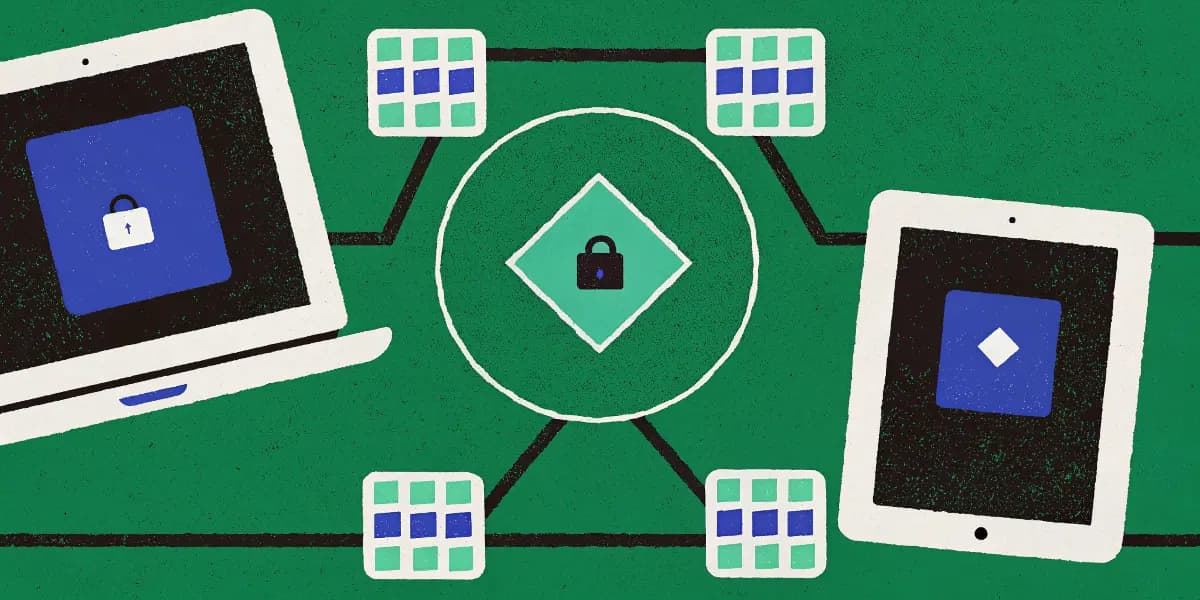
The Core Idea: One Vault, Many Devices
At a high level, a password manager works across devices like this:
- You create a vault, your encrypted database of passwords.
- This vault is usually stored in the cloud, in encrypted form.
- Every device you use downloads the encrypted vault and uses your master password to decrypt the vault locally.
- When you add or change a password on one device, your vault is updated and the encrypted update syncs to the cloud. Other devices then download and apply the changes.
You never send plain-text passwords to the password manager’s servers, because the vault uses end-to-end encryption.
End-to-End Encryption
Modern password managers are built on end-to-end encryption.
What it means in practice
- Your passwords are encrypted on your device before they ever leave it.
- The password manager’s servers only see scrambled data.
- The only way to unscramble that data is with your master password (or a key derived from it), which stays with you.
Think of it as a safe:
- The company hosts the safe.
- You own the key.
- They can’t open it, even if they want to.
For the same reason, if you forget your master password, the provider often has no way to recover your data. That is annoying, but the same design keeps your data secure.
How Sync Works, Step by Step
Say you install a password manager on your laptop and phone.
1. Setup on your first device
On your laptop:
- You create an account with the password manager.
- You choose a master password (long and unique, but still memorable).
- The app derives an encryption key from your master password and creates an empty vault.
- The vault is encrypted on your laptop and sent to the company’s server.
What the server stores:
- An encrypted blob (your vault)
- Your account info (email, maybe a username)
- Some metadata (timestamps, device list, etc.)
What the server does not know:
- Your master password
- Your encryption key
- The passwords inside the vault
2. Logging in on a second device
Now you install the app on your phone:
- You log in with your email and master password.
- The app downloads your encrypted vault from the server. It uses your master password to re-create the encryption key, then decrypts the vault locally on the phone.
- Your phone now has a local copy of your vault, just like your laptop.
Your master password is used only on your device, to open the vault. The company doesn’t see or store it in usable form.
3. What happens when you add or change a password?
On your phone, you create a new account for some app:
- The password manager suggests a strong password.
- You save it to the vault.
- Your local vault is updated.
- That vault is re-encrypted and synced back to the server.
- Your laptop later connects and sees there’s an update. It downloads the synced encrypted vault and decrypts the vault locally.
- Your new password now appears on your laptop too.
The same happens if you change a password on your laptop. All devices stay in sync through that encrypted file in the cloud.
How Password Managers Auto-Fill on Different Devices
Sync is half of it. Auto-fill is the other half.
On your computer (browser extension or desktop app)
- You log into your browser.
- The password manager browser extension reads the website address (like
twitter.com). - It looks in your vault for matching logins.
- It auto-fills your username and password for that site.
Because your vault is already decrypted on your device, the extension doesn’t need to keep contacting the server for each login. It uses the local decrypted copy in memory.
On your phone (mobile app integration)
On iOS and Android:
- You enable the password manager as your “Auto-fill provider” or “Password manager” in settings.
- From then on, when an app or website needs a login, the OS asks your password manager for matching credentials.
- You open it (with a PIN, fingerprint or face).
- It fills in the username and password in the app or browser.
Under the hood, this is the same synced vault, made available through your phone’s auto-fill system.
What About Biometrics?
You might open your vault with your fingerprint instead of the master password.
Behind the scenes:
- Your fingerprint/face/PIN usually releases a key stored locally on that device.
- That key decrypts your vault on that device only.
- The vault’s encryption still depends on your master password or a root key.
Biometrics are a convenient way to open the vault locally. You aren’t logging in to the cloud with your face.
Offline Use: What Happens Without Internet?
You can still use your password manager while offline:
- Your device has a local copy of your encrypted vault.
- Once you open it, you can see and use your passwords.
- Any changes you make are saved locally.
- The next time you’re online, the vault syncs. Those changes are synced to the cloud and other devices get the updates.
So syncing across devices doesn’t mean you lose access if the Wi-Fi goes down.
Safety Features to Look For
If you’re choosing a password manager to use on multiple devices, check for:
End-to-end encryption
Your data is encrypted before it leaves your device and only you hold the keys.Zero-knowledge architecture
The company can’t read your passwords, even if they wanted to.Cross-platform support
Works on Windows, macOS, iOS, Android, and with major browsers.Strong sync security
Uses HTTPS/TLS plus strong encryption for the vault itself.Backup and export options
So you’re not locked into one service forever.
What If the Company Gets Hacked?
It’s a fair concern.
If a company using proper end-to-end encryption gets breached, attackers may:
- Access the encrypted vaults (scrambled data)
- See some account metadata (like email addresses)
But they should not be able to:
- Decrypt your vault without your master password
- See your passwords or login details
Your safety in that scenario depends on:
- Whether the service uses solid end-to-end encryption.
- Whether your master password is strong and unique.
If your master password is “password123”, you’re in trouble. Use a long phrase instead, like “three green bicycles race uphill tonight”.
Simple Rules to Use a Password Manager Safely
Use a strong master password
A long phrase that you don’t use anywhere else.Turn on two-factor authentication (2FA)
It makes logging into your password manager account more secure, especially on new devices.Lock your devices
Use a PIN, password or biometrics on your phone and computer. Your vault is strong, but don’t leave the door wide open.Keep apps and browsers updated
Updates often patch security holes.Don’t sync in plain text anywhere else
Don’t export your passwords to unencrypted files and leave them lying around in email or cloud storage.