
How to Use Password Managers Across All Devices
Learn to sync passwords on phones, tablets, and PCs.
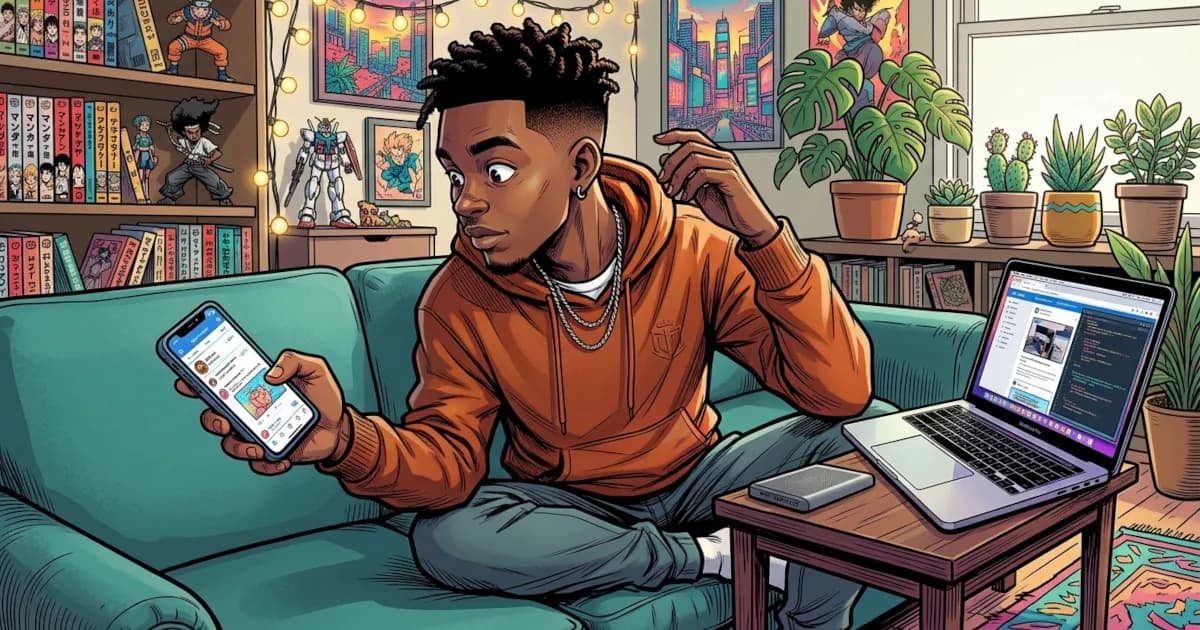
We use several devices every day. You might check email on your phone in the morning, work on a laptop during the day and watch a show on a tablet in the evening, all while trying to remember which password goes where.
Most people have dozens of logins spread across devices, browsers and apps. Keeping them all secure (and accessible) can feel like juggling flaming torches while blindfolded.
A password manager solves this.
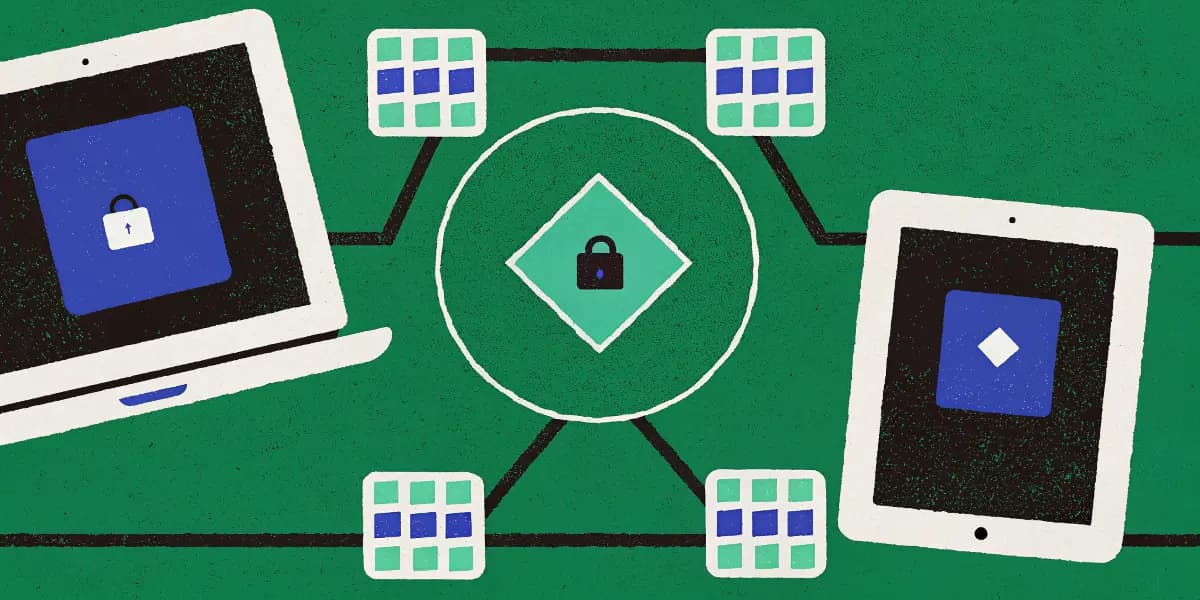
It stores your passwords safely and syncs them to all your devices, so your logins are there when you need them on your phone, tablet or PC.
1. Start with One Password to Rule Them All
Before you can sync passwords, you need a password manager account and a master password.
The master password opens your whole vault. You still have to remember this one. Every other password (for your apps, websites and services) is stored and encrypted inside your password manager.
Make it long and use it nowhere else. It also has to be something you can remember, for example:
"MyBlueParrotSingsAtSunrise2025"
With that set, you can install your password manager on all your devices.
2. Install Your Password Manager on Every Device
Most password managers have apps or browser extensions for every major platform. Android phones, iPhones and old Windows laptops are all covered.
Common platforms supported by password managers:
- Mobile: Android, iPhone, iPad
- Desktop: Windows, macOS, Linux
- Browsers: Chrome, Safari, Firefox, Edge, Brave
Quick Setup Steps:
- Download the app on your phone and tablet from the App Store or Google Play.
- Install the browser extension on your PC or laptop.
- Log in using your master password.
- Sync your data (usually automatic).
You now have the same encrypted vault on every device.
3. Sync Your Passwords Securely Across Devices
Automatic syncing is one of the main reasons to use a password manager.
When you add or change a password on one device, your password manager updates it securely on all the others. There is nothing to copy by hand and no need for sticky notes.
For example:
- You sign up for a new shopping site on your laptop.
- The password manager saves your login details automatically.
- Later, when you open the same site on your phone, it's ready to log you in.
This happens in the background with end-to-end encryption, so your passwords stay protected whether they are stored on the device or synced through the cloud.
Tech tip (in plain English):
Your passwords only cross the internet in encrypted form. Even the password manager company can't see what's inside your vault.
4. Enable Auto-Fill for Faster Logins
Once your passwords are synced, turn on auto-fill.
Auto-fill saves you typing a password every time you log in. Your password manager fills it in for you, accurately and securely.
How to turn on Auto-Fill:
- On Android:
Go to Settings → Passwords & Autofill → Select your password manager. - On iPhone:
Go to Settings → Passwords → AutoFill Passwords → Enable your password manager. - On Desktop Browsers:
Install the browser extension and log in. You'll see an icon appear in password fields.
After that, on any login page your password manager fills in your credentials with a tap or a click.
Bonus tip:
Many managers also fill in credit cards, addresses and other form data, which saves a lot of typing when you shop online.
5. Use Browser Extensions for One-Click Access
The browser extension is the most useful part of a password manager on a computer.
Once installed, it sits inside your web browser and can fill in passwords, generate new ones or save new logins automatically.
You'll usually see your password manager's logo next to login fields or in your browser's toolbar. Clicking it lets you:
- View saved logins
- Generate a strong password
- Save new passwords instantly
It works the same way in desktop and laptop browsers and syncs with your mobile app.
So when you create an account on your computer, the login is already available on your phone.
6. Keep Everything Updated and Backed Up
Your password manager syncs automatically. Still, it's worth checking now and then that everything is up to date.
Here's what to do:
- Check for app updates regularly on all devices.
- Ensure sync is enabled in settings.
- Back up your vault (some apps allow encrypted backups).
Most premium password managers (like Bitwarden, 1Password, or Dashlane) keep your data continuously synced and backed up using encrypted cloud storage.
If you lose a device, your passwords are not lost with it. Reinstall the app and log in with your master password.
7. Add Two-Factor Authentication for Extra Safety
Syncing passwords is convenient. This step makes it much more secure.
Turn on two-factor authentication (2FA) for your password manager account. This adds an extra layer of protection by requiring a second step (like a code or fingerprint) whenever you log in.
Even if someone got hold of your master password, they would still need your phone or fingerprint to open your vault.
Most password managers let you enable 2FA using:
- Authenticator apps (like Google Authenticator, Authy, or 1Password itself)
- Hardware keys (like YubiKey)
- Biometrics (Face ID, Touch ID, fingerprint login)
Once it's on, your synced data stays safe even if your phone or laptop falls into the wrong hands.
8. Manage Devices and Access Settings
Most password managers show every device connected to your account and let you manage them from your settings.
If you get a new phone or lose an old laptop, you can:
- Revoke access for the old device
- Log out remotely
- Re-sync your vault to the new one
That way you always know exactly where your passwords are being used.
9. Use Cross-Platform Sync Features
Your devices don't all have to come from the same company.
Password managers are built to work across different platforms. That means:
- You can start on an Android phone, carry on with a Windows laptop and finish on an iPad without losing your place.
- You can use more than one browser (Chrome at work, Safari at home) and your logins stay the same in each.
In 2025, that cross-platform support makes a password manager hard to do without. Your passwords go with you from one device to the next.
10. Common Syncing Problems (and How to Fix Them)
Even the best tools have the occasional hiccup. These are the most common syncing issues and how to handle them:
| Problem | Possible Fix |
|---|---|
| Passwords not updating | Check your internet connection or hit the "sync" button manually |
| New device not syncing | Log out and back in, then make sure cloud sync is turned on |
| Auto-fill not working | Reinstall browser extension or enable permissions |
| Forgot master password | Use recovery key or reset via emergency access (if supported) |
If your password manager has a support team, they can usually fix syncing issues in minutes.
11. Best Password Managers for Multi-Device Sync
If you want a password manager that works well across all your gadgets, these are good choices:
| Password Manager | Best Feature | Multi-Device Support |
|---|---|---|
| Bitwarden | Open-source, free sync across all devices | Excellent |
| 1Password | Secure sharing and family plans | Smooth |
| Dashlane | Built-in VPN and dark web monitoring | Excellent |
| NordPass | Easy-to-use interface, zero-knowledge encryption | Strong |
| Keeper | Enterprise-grade security | Very strong |
All of these offer encrypted cloud syncing, mobile apps and browser extensions, which makes any of them a good fit if you use several devices.
12. Why You'll Never Go Back
Once you use a password manager on all your devices, managing passwords any other way starts to feel like hard work.
In practice:
- You stop typing complex passwords on tiny phone keyboards.
- Switching devices no longer means forgetting a login.
- You have no reason to reuse a weak password because you couldn't remember the last one.
Your password manager keeps everything in order and up to date. It all stays secure on your couch at home or halfway across the world.
13. Quick Setup Recap
Here is the whole setup as a checklist:
- Choose a password manager (Bitwarden, 1Password, Dashlane, NordPass, or Keeper).
- Create your master password.
- Install the app on all your devices.
- Enable auto-fill and browser extensions.
- Turn on two-factor authentication.
- Sync and relax.
That covers every screen you own.
Security That Moves With You
Password managers keep you secure on all your devices and make logging in more convenient. They save time and give you stronger protection online than you had before.
You can stop retyping and guessing passwords. The sticky notes can come off your monitor too.
Your logins travel with you from phone to tablet to PC, locked tight and ready when you need them.
#PasswordManager #OnlineSecurity #SyncPasswords