
Password Manager Myths Debunked
If you’ve ever thought “I don’t trust password managers” while reusing the same three passwords everywhere, start here.
Password managers sound technical and a bit scary. In practice they’re one of the simplest tools you can use to stay safer online. Most of the common myths about them are wrong. We go through seven of them below.
Myth #1: “Password managers aren’t safe because they can be hacked”
Everything connected to the internet can be hacked. That includes:
- Your email
- Your social media
- Your favorite shopping site
- And yes, password managers too
So judge a password manager against what you would do without one.
With a reputable password manager:
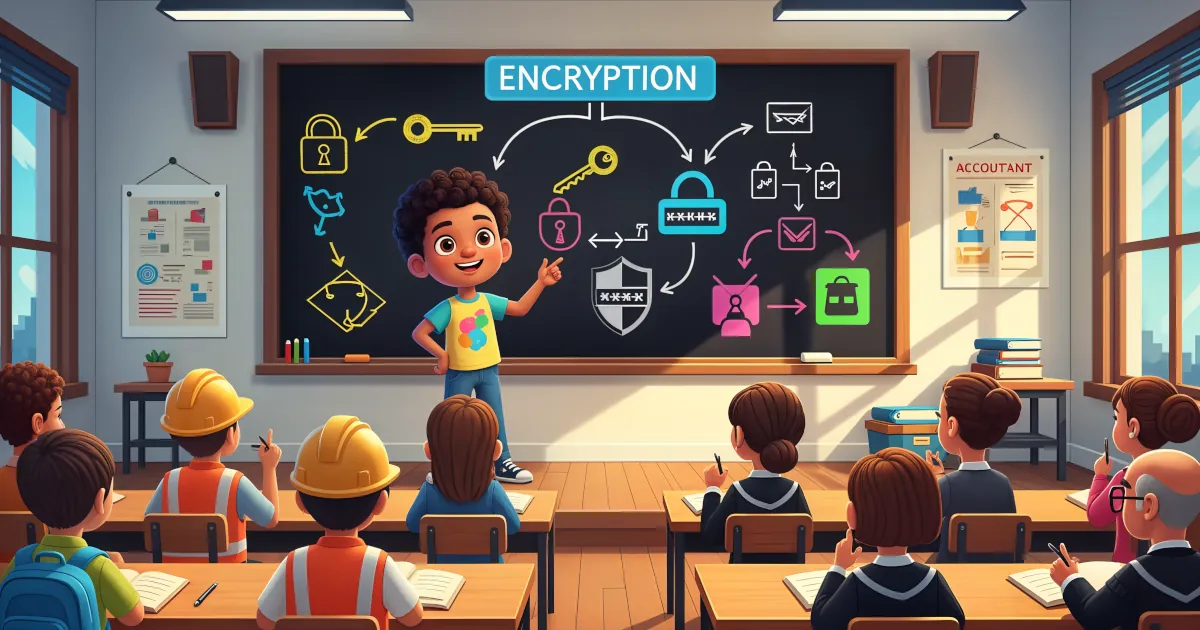
- Your passwords are encrypted on your device before they’re stored.
- The company generally cannot see your passwords (they only see scrambled data).
- Even if someone breaks into the company’s servers, they’d get a pile of meaningless encrypted junk unless they also know your master password.
Compare that to:
- Reusing the same password everywhere
- Storing passwords in your browser with no extra protection
- Keeping them in a notes app or a spreadsheet
- Using easily guessed passwords like
Summer2024!for every site
In almost every realistic scenario, a good password manager is safer than how most people handle passwords on their own.
A password manager reduces risk where you’re most likely to fail. Human memory is unreliable, so people fall into bad habits like reusing passwords.
Myth #2: “If someone gets my master password, I’m doomed”
There’s some truth in this one:
Your master password is extremely important. That doesn’t leave you defenseless, though.
With these steps, this myth becomes mostly irrelevant:
Use a strong, unique master password. Make it long and memorable, for example
purple-rain-clouds-dance-at-midnight. Don’t reuse it anywhere else. Ever.Turn on two-factor authentication (2FA). With 2FA, someone who guesses or steals your master password still needs a code from an authenticator app or a hardware key. Sometimes the code comes by SMS, which is less ideal but still better than nothing.
Lock devices and apps. Protect your phone and computer with a PIN, fingerprint or face recognition. Set the password manager to lock after a short period of inactivity.
So yes, your master password opens everything. You’re not leaving it lying on the kitchen table, though. Combine a strong passphrase with 2FA and device security and compromising it becomes extremely hard.
Myth #3: “Password managers are only for tech experts”
You don’t need to be “good with computers” to use a password manager. The best ones are designed for busy, distracted people.
Most password managers:
- Autofill usernames and passwords for you in your browser and apps
- Suggest strong passwords automatically when you create a new account
- Save new logins with one click (“Save to password manager?” -> Yes please)
- Work across your phone, tablet and computer without you doing anything complicated
If you can:
- Install an app
- Tap “Allow”
- Click “Save”
then you can use a password manager.
The first 10-15 minutes of setup are the most work you’ll do. After that, it saves you time and brainpower every day.
Myth #4: “I only have a few accounts. I can remember my passwords”
Count them:
- Main social media or messaging apps
- Online banking
- Shopping sites (Amazon, eBay, etc.)
- Streaming services
- Work or school accounts
- Travel apps (airlines, hotel chains, ride-sharing)
- Utilities and bills
Most people have dozens of accounts. Some have hundreds.
That creates a problem. When people rely on memory, they usually:
- Reuse the same password on multiple sites
- Make tiny changes:
MySecurePass1!,MySecurePass2!, etc. - Use patterns that hackers know how to guess
A password manager lets you:
- Use a different, strong password for every single account
- Not worry about remembering any of them except one: your master password
- Log in quickly without hunting through notes, screenshots or old emails
Benefit: a big upgrade in security and, surprisingly, in convenience too.
Myth #5: “My browser’s built-in password manager is enough”
Browser password managers (like those in Chrome, Safari, Edge, Firefox) are better than nothing, but they have limitations.
Browser managers typically:
- Are tied to that specific browser
- Can be weaker on security features
- Don’t always handle app logins well
- Usually don’t offer full security reports or alerts
Dedicated password managers usually:
- Work across all browsers and devices
- Offer password health checks (spotting weak, reused or breached passwords)
- Provide secure sharing of passwords with family or team members
- Store other sensitive data, such as Wi-Fi passwords, notes (like recovery codes), credit card details, ID numbers and documents
If you only ever use one browser on one device, the browser’s manager might be “okay.”
Once you add more devices or apps, or you care about stronger security, a dedicated password manager gives you more control and more benefits.
Myth #6: “It’s too much hassle to move everything into a password manager”
Moving in takes some effort at the start. It’s less painful than you think. You also only do it once.
A simple approach:
Start small. Install a password manager. Add your most important accounts first: email, banking, main social accounts.
Let it grow naturally. Every time you log in somewhere, let the password manager save it. When a site asks you to reset your password, generate a new strong one and save it.
Use an import if possible. Many password managers can import from your browser or a CSV file. That means a lot of your logins might come over automatically.
Within a week or two, most of your commonly used accounts will be in there, because you’ll have logged into them by then.
From then on, you’re removing the work of:
- Resetting forgotten passwords
- Typing everything out manually
- Guessing which password version you used this time
Myth #7: “I don’t have anything worth hacking”
You do. Everyone does.
Attackers aren’t always targeting you personally. Often they’re going after anyone who’s easy to exploit.
Valuable targets include:
- Your email account (can be used to reset other passwords)
- Your social media (for scams or impersonation)
- Your online shopping accounts (stored addresses, maybe card details)
- Your identity details (names, addresses, dates of birth)
Even if your bank is “safe,” a compromised email can lead to:
- Password resets on financial accounts
- Phishing attempts on your contacts
- Fraud and identity theft down the line
A password manager is for anyone who:
- Uses email
- Logs in to websites
- Has any kind of online presence
That covers nearly everyone, including people who don’t think of themselves as “important.”
Benefits of Using a Password Manager
The main benefits, in one place:
Stronger security: unique, complex passwords for every account and less damage if one site gets breached.
Less mental load: remember one master password instead of 97 variations of “Password123!”. No more guessing or constant password resets.
Faster logins: autofill on websites and apps, with sync across your devices.
Better awareness: alerts about weak or reused passwords, plus notifications when a service you use suffers a known breach.
Overall, you get much better security for less effort.
What You Can Do Next
If you’re not using a password manager yet, follow these five steps:
- Pick a reputable manager (free and paid ones both exist).
- Create a long, memorable master password.
- Turn on two-factor authentication for it.
- Add your most important accounts first.
- Let the manager take over from there.
You don’t need to be perfect. You just need to be safer than you were yesterday. A password manager gets you there quickly.