
Top 10 Password Manager Features You Need
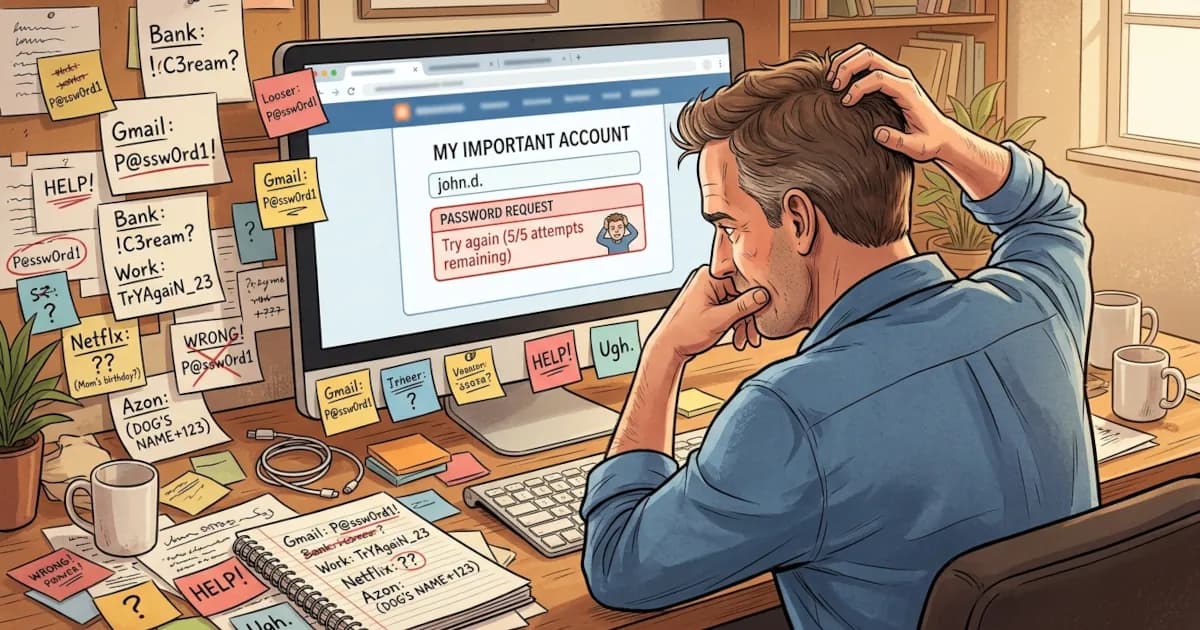
If you’re still using the same password for multiple accounts, it’s time for an intervention.
Password managers are one of the easiest ways to level up your security without making your life harder. But there are tons of options and they all claim to be “the best.”
Below are the 10 features to look for in a password manager, with short review-style commentary on why each one matters and how to use it day to day.
1. Strong Encryption (The Non-Negotiable)
If a password manager doesn’t get this right, nothing else matters.
What to look for:
- AES-256 encryption or an equivalent modern standard
- Zero-knowledge architecture (the company can’t see your data)
- Clear security documentation and independent audits
How to use this in your decision:
- Check the website for an explicit mention of AES-256 and end-to-end encryption.
- Look for words like “zero-knowledge,” “client-side encryption,” “third-party audit,” “open security whitepaper.”
Best of tip: Avoid any manager that stores passwords unencrypted anywhere or can “recover” your master password without you doing anything. Either one is a red flag.
2. Password Generator (Stop Making Up Your Own)
Your dog’s name plus an exclamation mark is not a secure strategy.
A built-in password generator creates strong, random passwords for every site.
What to look for:
- A length setting (aim for 16+ characters)
- A choice of letters, numbers and symbols
- An option to exclude confusing characters (O/0, I/1)
- A choice between passwords and passphrases (random words strung together)
How to use:
- When signing up for a new account, click the generator icon in your browser extension.
- Set a strong default (e.g., 20 characters, all character types).
- Let the manager save it automatically. Don’t bother memorizing it.
Best of use case: For highly sensitive accounts (banking, email, cloud storage), always use a long, random password generated by the manager.
3. Auto-Fill and Auto-Capture (Less Typing at Login)
If your password manager feels clunky, you won’t use it. Good auto-fill and auto-capture make it quick to use.
What to look for:
- Browser extensions for Chrome / Edge, Firefox and Safari, plus Brave / Opera as a bonus
- Mobile apps with system-level auto-fill integration (iOS / Android)
- Auto-capture of new logins and password changes
How to use:
- Install the browser extension and sign in once.
- Next time you log in to a website, your manager should suggest a saved login and offer to save any new ones.
- On mobile, enable it as the default auto-fill service in settings.
Review angle: The best password managers feel invisible. They pop up when you need them and stay out of the way the rest of the time.
4. Cross-Device Sync (All Your Stuff, Everywhere)
If your passwords only live on one device, you’re one broken phone away from chaos.
What to look for:
- Secure cloud sync across desktop (Windows, macOS, maybe Linux) and mobile (iOS, Android)
- Browser access for emergencies
- Clear explanation of how syncing is encrypted
How to use:
- Set up your account on your main device first.
- Then install the app or extension on your other devices and sign in.
- Turn on sync in settings and let it run in the background.
Best of tip: Some managers offer local-only (no cloud) options for extra privacy. They suit advanced users but are more hassle for most people.
5. Multi-Factor Authentication (MFA) Support
Your master password is the key to the kingdom. Protect it.
What to look for:
- Support for TOTP apps (Google Authenticator, Authy, etc.) and hardware security keys (YubiKey, FIDO2)
- Option to require 2FA on new device logins and sensitive account changes
How to use:
- Turn on 2FA for your password manager account first.
- Use an authenticator app or, even better, a hardware key.
- Store backup codes somewhere offline (printed or written down).
Review angle: In “best of” lineups, 2FA options separate serious tools from casual ones. If a manager’s 2FA options are weak or confusing, skip it.
6. Secure Sharing (Including That One Netflix Login)
You will eventually need to share a password with a partner or coworker, or with the roommate who keeps forgetting the Wi-Fi.
What to look for:
- Secure, encrypted sharing of individual logins and of collections / folders (e.g., “Household,” “Work”)
- Ability to grant and revoke access easily
- Ability to set read-only vs full-edit permissions
How to use:
- Create a shared vault/folder for common accounts.
- Add items you want others to access (Wi-Fi, streaming, utilities).
- Invite others by email from within the app instead of texting passwords.
Best of tip: If you choose, a good password manager never shows the raw password to the other person. They only get auto-fill access.
7. Secure Notes and Storage Beyond Passwords
Good managers store more than passwords. You can keep your other sensitive information in the same encrypted vault.
What to look for:
- Secure notes
- Storage for credit/debit cards and bank accounts
- Storage for IDs (passport, driver’s license) and software licenses
How to use:
- Move sensitive info out of plain text files, email drafts and random phone notes.
- Store it in encrypted notes or the specific card/ID templates.
Review angle: In best-of reviews, this is a big plus if you travel or freelance, or if you manage a lot of accounts and documents.
8. Breach Monitoring & Security Reports
The internet leaks passwords like a broken faucet. You want to know when yours are out there.
What to look for:
- Dark web / breach monitoring, with alerts if your email appears in a known leak
- Security reports that list reused and weak passwords, plus old passwords that should be rotated
How to use:
- Run a security audit when you first set up your manager.
- Start with email, banking and main shopping accounts, then any reused passwords.
- Work through the list slowly, using the generator to fix each one.
Best of tip: This feature turns your password manager into a constant “security coach” that tells you what to fix.
9. Easy Migration and Backup
If getting your passwords in is a chore, you probably won’t start. If getting them out is impossible, be suspicious.
What to look for:
- Import tools for browsers (Chrome, Safari, etc.) and other password managers (LastPass, 1Password, Bitwarden, etc.)
- Export options (usually in encrypted or CSV formats)
- Clear backup options and instructions
How to use:
- Start by importing from your browser’s saved passwords.
- If you use another manager, check its specific import guide.
- Make an encrypted backup occasionally and store it safely offline.
Review angle: The best of the bunch make migration almost one-click. If everything has to be typed by hand, it’s not worth your time.
10. Transparent Pricing and Ease of Use
All the features in the world don’t matter if the app is confusing or shady.
What to look for:
- Clear pricing, with a free tier that has limits or a reasonably priced paid plan
- No surprise paywall in front of the features you need
- Honest communication, with security practices explained in normal language
- Public security audits or bug bounty programs
- A clean, simple interface without ads or upsells cluttering it
How to use:
- Try the free version or trial first.
- Ask yourself whether it makes your life easier or you have to fight it.
- Check that you can find what you need in under 10 seconds.
- If you manage a family or small team, compare family/business plans for value.
Best of wrap-up: Pick a password manager that passes two tests:
- It meets the security basics above.
- You will use it every day.
How to Pick and Use the Best Password Manager
When you’re comparing tools, treat these features like a checklist:
- Strong encryption and zero-knowledge design
- A good password generator
- Smooth auto-fill across all your devices
- Reliable sync
- Strong MFA for your vault
- Secure sharing
- Secure notes and card/ID storage
- Breach monitoring and security reports
- Easy import/export
- Clear pricing and a friendly interface
Start by using it for your most important accounts (email, bank and primary cloud storage). Then gradually move everything else over.
Your future self, trying to reset a password from a hotel Wi-Fi at midnight, will be very grateful.