
Forgetting Your Passwords and How a Password Manager Helps
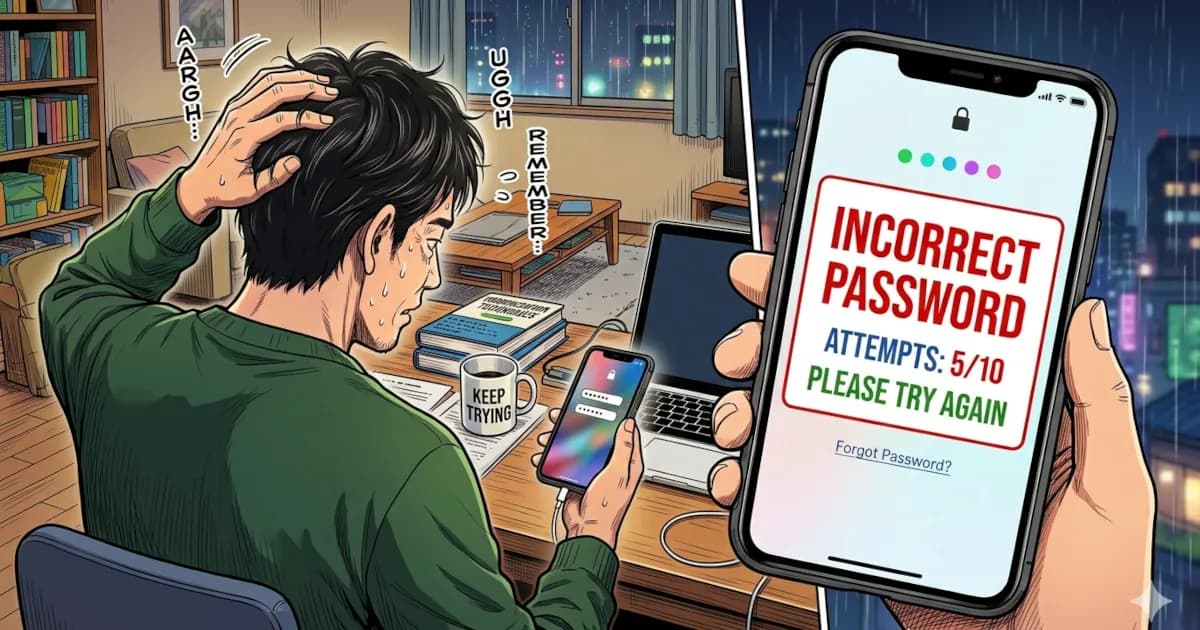
You open your laptop to log in and your brain just says:
“Nope. Never seen that password in my life.”
Now you’re trying old passwords, pet names, random numbers, your birthday, that one “ultra-secure” password you definitely reused on 18 different sites.
Welcome to password chaos.
Forgetting a password can lock you out of important accounts and push you toward weaker security. If you’re done living in panic mode, a password manager fixes both problems.
The Modern Password Mess
If you struggle to remember passwords, blame the system. It asks more of your memory than anyone can manage.
Look at what we’re asked to do:
- Use long, unique passwords
- Don’t reuse them
- Change them regularly
- Combine upper and lower case letters with numbers and symbols
- Don’t write them down
- Don’t save them where someone can find them
And we have:
- Dozens (or hundreds) of accounts
- Across work, personal, subscriptions, banking, apps, smart devices
Humans were not built for this.
So we improvise:
- Using the same password everywhere
- Doing small variations: Password1!, Password2!, Password3!
- Using easily guessable info: dog names, birthdays, sports teams
It “works” until it doesn’t.
The Problems a Forgotten Password Causes
A forgotten password can set off a whole chain of problems.
1. The Reset Spiral
You hit “Forgot password?” and now you’re:
- Waiting for email links
- Checking spam folders
- Creating a new password you instantly forget because you rushed it
- Getting logged out of every other device
If the reset needs:
- Your old phone number
- A backup email you no longer use
- Security questions you answered 7 years ago
You might be locked out for good.
2. Locked Out of Important Stuff
Some accounts are mildly annoying to lose.
Others are a full-on disaster:
- Banking or investment accounts
- Email (which controls pretty much everything else)
- Domain registrars and website hosting
- Cloud storage with your photos and documents
- Passwords for work systems or client accounts
If you lose access to the wrong account, a password reset won’t be enough. You could face phone calls, verification documents, and support tickets. Sometimes there is no way back in.
3. Security Takes the Hit
Forgetting passwords often pushes people to make their accounts less secure, for example by:
- Reusing the same simple password on many sites to “remember it”
- Turning off two-factor authentication (2FA) because it “complicates things”
- Storing passwords in plain text (notes app, spreadsheet, email drafts, sticky notes)
Each of these makes life easier for attackers.
The Hidden Cost of Password Chaos
Forgotten passwords waste time. They also cost you:
- Mental energy: tiny spikes of stress every time you log in
- Productivity: lost passwords hold up the tasks you need to finish, especially at your job
- Money: lost subscriptions you can’t access, or potential scams if you reuse passwords
If a reused password leaks from one website, attackers try it everywhere. That’s how one forgotten, reused password can turn into:
- Unauthorized purchases
- Hijacked social accounts
- Locked-out email or cloud storage
- Identity theft and account takeover
What You Need a Password Manager For
A password manager solves most of these problems. It is:
A secure, encrypted vault that stores all your passwords, so you only have to remember one master password.
In everyday life, this is what you need a password manager for:
1. One Password to Rule Them All
Instead of remembering 50+ logins, you remember:
- One strong master password
- Maybe an extra PIN or biometric (fingerprint/Face ID) on your phone
The manager handles the rest.
You stop asking yourself:
- “Was it this version, or this one?”
- “Did I use a capital letter here?”
- “What symbol did I add at the end?”
You log into the manager. It logs you into everything else.
2. Strong, Unique Passwords (Without Thinking)
Password managers are good at the tedious, random work that humans are bad at.
They can:
- Generate passwords like
a!G4$k@2Qf9Lz#8d - Use different ones for every single account
- Store them securely
- Fill them in automatically
You don’t have to remember the password.
You just have to remember you have a password manager.
3. Auto-Fill Instead of Typing
Most password managers integrate directly with your browser or phone, so they can:
- Recognize login pages
- Suggest the correct username/password
- Auto-fill forms
This turns “Ugh, what was my login again?” into a simple tap or click.
You get speed and convenience without giving up security.
4. Safer Than a Notebook or Notes App
People sometimes say: “Isn’t putting all my passwords in one place risky?”
Password managers are safer than DIY methods for these reasons:
- Everything is encrypted with strong algorithms
- Your master password isn’t stored on their servers
- Even if someone stole their data, it would be unreadable without your master password
- Good managers go through independent security audits
Compare that to:
- A notes app with no lock
- A spreadsheet called “passwords.xlsx”
- A physical notebook next to your computer
Attackers love those.
5. Peace of Mind When Something Goes Wrong
When things go sideways, a password manager helps with:
- Data breaches: You can quickly see which accounts are affected and change those passwords.
- New devices: Log into your password manager and all your logins are there.
- Account recovery: Many managers can store backup codes and security questions securely too.
The chaos becomes manageable.
If You Can’t Remember the Master Password
It’s a fair worry.
Managers deal with a forgotten master password in different ways:
- Some managers offer account recovery options, like recovery keys, hints, or trusted contacts.
- Others intentionally do not keep a backdoor, for maximum security.
That’s both the strength and the weakness of true encryption. If nobody else can see your data, nobody else can recover it either.
Two simple tips:
Choose a master password that’s long and memorable, like a phrase:
- Example:
green-tea-sunset-radio-station-42
- Example:
Store a written backup of your master password in a safe physical place (like a home safe).
You need a password manager for everything else. Your brain only has to protect one secret.
How To Start Using a Password Manager (Without Overthinking It)
Pick a reputable one
Examples include 1Password, Bitwarden, Dashlane, Keeper, etc.
(Look for good reviews, security audits, and cross-platform support.)Install it everywhere
Phone app
Browser extension
Desktop app if offered
Add accounts gradually
Start with the most important: email, banking, cloud storage
Let the manager offer to save logins as you use them
Over time, your vault fills up naturally
Turn on two-factor authentication (2FA)
For your password manager and sensitive accounts like email and banking.
Some managers can even store your 2FA codes.Stop trying to remember every password
That’s the whole point of using one.
Summary
Forgetting passwords doesn’t mean you’ve failed. The old “remember everything” approach stops working once you have dozens of logins.
You need a password manager to:
- Stop resetting the same passwords over and over
- Avoid weak, reused passwords that get you hacked
- Protect your important stuff without memorizing a small novel
- Turn “Oh no, what’s my password?” into “Click, done”
If you’re tired of living in password chaos, a password manager is one of the simplest and most useful tech upgrades you can make.