
Password Managers Versus Writing Passwords Down
You need a password for everything: banking, email, streaming, shopping, gaming, work accounts, even your smart fridge. The list keeps growing.
So you do what people have done for decades and write them down, whether in a notebook, in your phone’s notes app, or on sticky notes that somehow migrate around your desk.
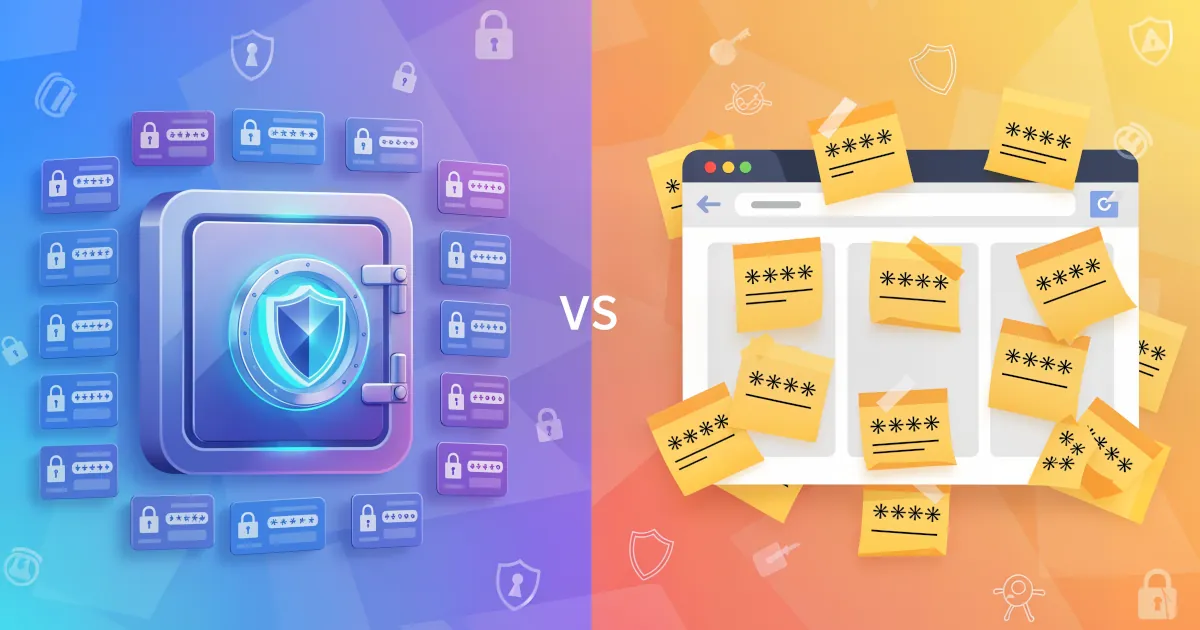
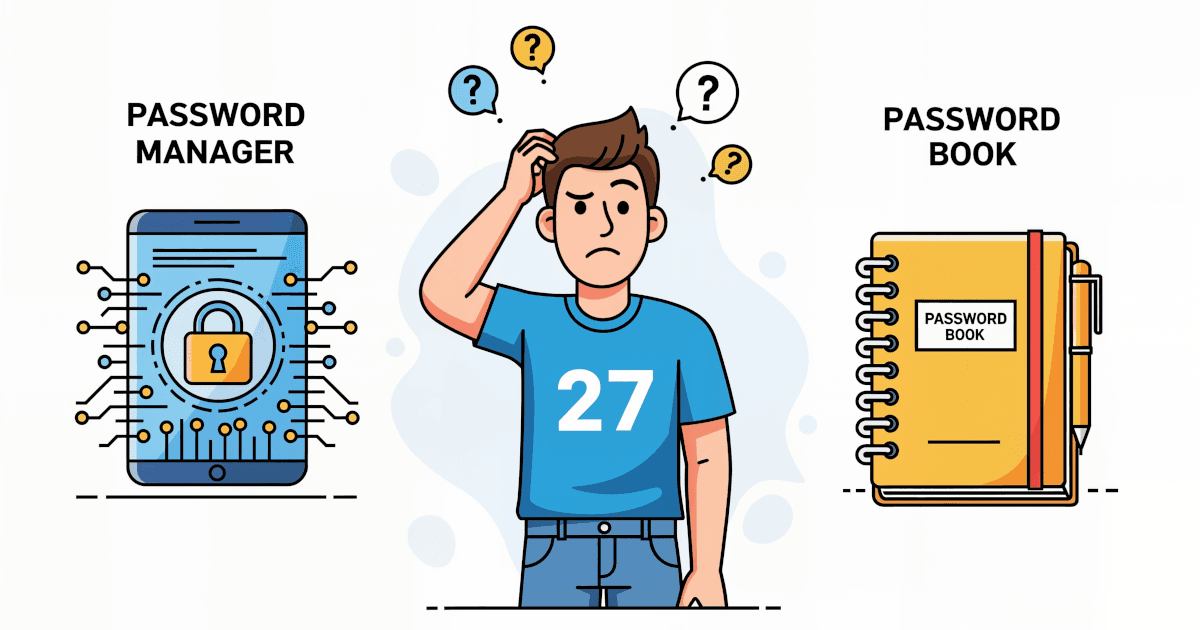
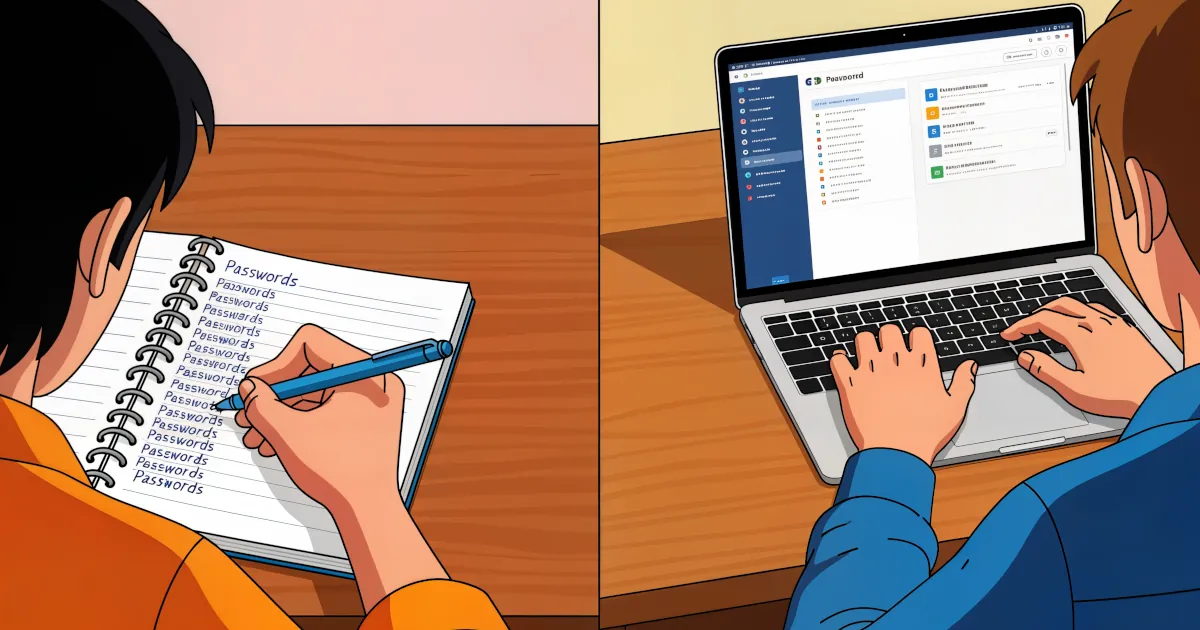
But there’s a big shift under way: more people are turning to password managers to handle their logins. The comparison below shows which of the two keeps you safer (and saner).
The Old Habit: Writing Passwords Down
When people say “I keep my passwords somewhere safe,” they usually mean one of these:
- A notebook in a drawer
- A note on their phone (“Work Stuff” or “Logins 2”)
- A text file on their laptop called
passwords-final-FINAL.txt - Sticky notes under the keyboard
Writing passwords down does have a few obvious perks.
Why people like writing passwords down
- It’s simple. You only need pen and paper (or a notes app), with nothing to install or learn.
- It feels “offline.” A notebook can’t be hacked over Wi-Fi.
- You’re in control. Your list is physically with you.
Once you think about security rather than convenience, the weak spots show up fast.
The risks of written passwords
They get reused
If you’re writing things down, you’re probably using some version of the same password:Password2023!Password2024!Or
Password123!everywhere with tiny variations.
If one site is breached, attackers can try that password on your email, bank, social media, and more. This is called credential stuffing. It’s painfully common.
They get lost or stolen
A notebook can be read by anyone who finds it.
Your phone’s notes app may not be locked at all.
A laptop text file is one malware infection away from being exposed.
If someone gets hold of your “master list,” they have the keys to every account on it.
They get outdated and messy
You reset a password once and forget to update your notebook. Now your list is wrong.
Then you reset it again, and again. Soon you have entries like:“Netflix new new password”
“Netflix newer password”
“Netflix use this?”
Chaos is not a security strategy.
They don’t scale
With five accounts, paper might work.
With fifty accounts across work, personal life, subscriptions, and devices, you’ll end up doing one of two things:Reusing passwords (dangerous)
Spending far too much time hunting through pages or notes
The Modern Tool: Password Managers
A password manager is an app that securely stores all your usernames and passwords in an encrypted “vault.” You only have to remember one strong master password. The manager remembers the rest.
What password managers do
- Generate strong, unique passwords for every site
- Store them securely in an encrypted database
- Auto-fill logins in your browser or apps
- Sync across phone, tablet, and computer
- Alert you if you’re using weak or reused passwords
- Sometimes warn you when a website you use has been breached
It’s like having a secure personal assistant whose entire job is “deal with my logins.”
Why Use Password Managers Instead of Notes?
1. Security: unique vs. reused
Writing passwords down:
Most people reuse or slightly tweak passwords. That’s easy for you and just as easy for attackers.Password manager:
Can create something likes9L!jR4%zP#2@for every account. You don’t need to memorize it. The manager does that for you.- If one account is compromised, the others are still safe.
Winner: Password manager. Using unique passwords does more for your security than any other single change.
2. Protection against prying eyes
Paper/notes:
Anyone who gets your notebook, your phone, or a laptop left signed in can read everything in plain text.
A photo of your notebook is all it takes.
Password manager:
Your vault is encrypted.
Even if someone gets a copy of the password database, they still need your master password to decrypt it.
Many managers offer optional two-factor authentication (2FA) for extra security.
Winner: Password manager. An encrypted vault stays unreadable without the master password. A hidden notebook can be read by whoever finds it.
3. Convenience and speed
Writing down:
You flip through pages or search through clumsy notes.
Then you carefully retype that 16-character mess of symbols and numbers. You might mistype it twice.
Password manager:
Auto-fills your login forms in browsers and apps.
Saves new logins when you sign up.
Updates passwords automatically when you change them (in many cases).
Winner: Password manager. It’s faster and easier. It also makes strong passwords practical to use.
4. Recovery if something goes wrong
Notebook scenario:
A house fire, a lost bag, or a theft can wipe out your only record.
Then you’re stuck clicking “Forgot password?” on 40 different sites.
Password manager:
Your vault is usually backed up and synced to the cloud.
If you lose your phone, install the app on a new device and log in. Your passwords are back.
Winner: Password manager. A synced, backed-up vault survives the loss of any one device. A notebook is a single copy.
5. Extra security features
Password managers often do more than store passwords:
- Security audit: tells you which passwords are weak, reused, or old.
- Breach monitoring: alerts you if one of your accounts appears in a known data breach.
- Secure notes: store Wi-Fi keys, license keys, recovery codes, and more.
- Password sharing: lets you give someone a login (for example Netflix or a family account) without texting or emailing the password itself.
A notebook does none of this.
“But Aren’t Password Managers a Big Target?”
It’s a fair question. Putting all your passwords in one place sounds risky.
Some points to weigh:
- Reputable password managers encrypt everything on your device before it ever hits their servers.
- They don’t know your master password and can’t see your data.
- Without your master password (and often 2FA), an attacker just sees scrambled data.
Yes, password managers are a target. They are built with that in mind. A plain-text note on your phone or a paper list stays safe only as long as nobody looks at it, which is not a realistic expectation.
How to Start Using a Password Manager (Without Losing Your Mind)
You don’t need to switch everything in one stressful weekend. Try this:
Pick a reputable password manager
Examples include Bitwarden, 1Password, Dashlane, and others. Many have free tiers.Create a strong master password
Some guidelines:Make it long (at least 14-16 characters).
A passphrase works well:
river.coffee.window.brickWrite it down once and keep it somewhere safe while you memorize it.
Turn on two-factor authentication (2FA)
This adds an extra layer of protection for your vault.Start with your most important accounts
Email
Bank/financial
Cloud storage
Work accounts
Change each to a unique, manager-generated password and save it to the vault.
Let the manager save as you go
Over days and weeks, every time you log into something, update it to a strong unique password and save it. Gradual migration is fine.Retire the notebook/notes app
Once you’re confident your main accounts are in the manager, shred that password sheet or clean out your notes file.
Summary
- Writing passwords down feels simple and familiar. In practice it leads to reused passwords sitting in plain text. It also breaks down as your number of accounts grows.
- Password managers give you a strong, unique password for every account, encrypted and filled in for you, with backups and extra security tools built in.
If you’re choosing between the old habit and the modern tool, choose the password manager. It is safer and more convenient. Over time it will also save you a lot of stress.
You don’t need to be “into tech” to use one. Being tired of juggling logins is reason enough to start.