
Password Manager vs Browser Autofill
If you’re tired of typing passwords, letting your browser “remember” them feels like magic. Chrome, Safari, Edge and Firefox all offer to save and autofill passwords, which makes logging in easy.
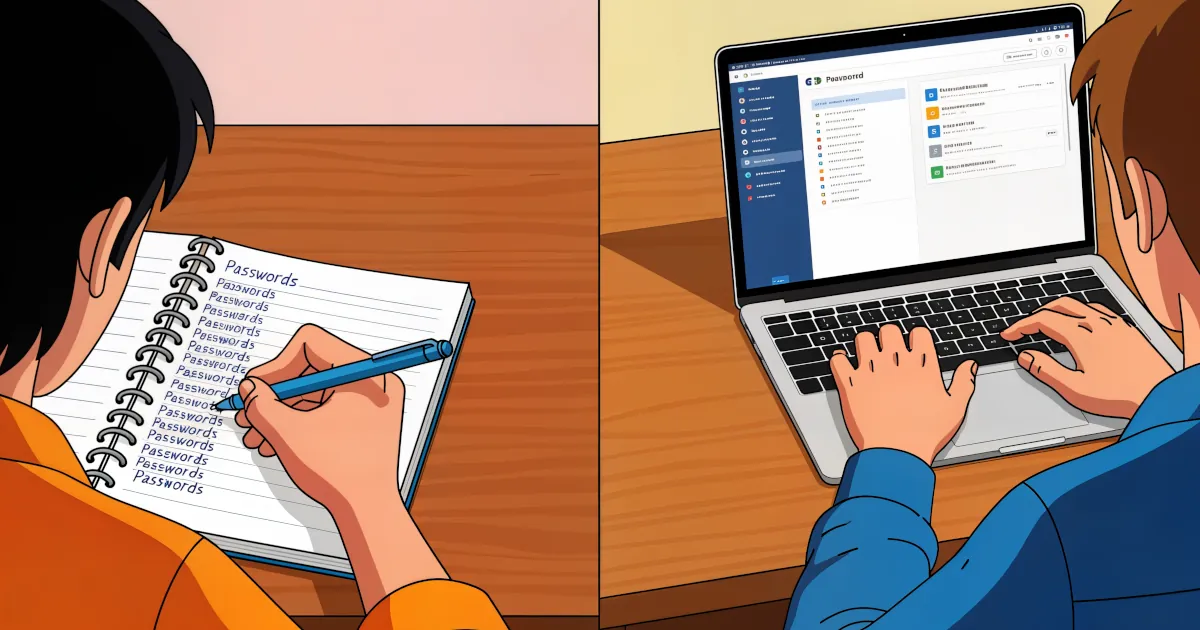
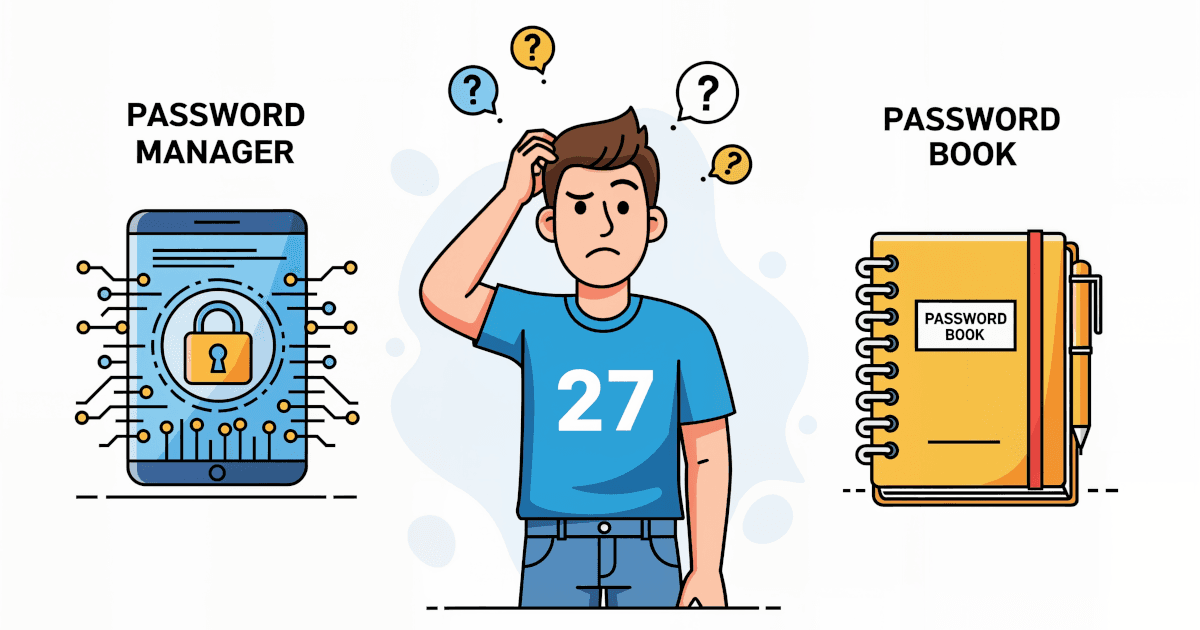
Browser autofill is convenient but not necessarily secure. A dedicated password manager is built for security first and convenience second.
A password manager is usually the smarter choice, especially if you care about your accounts and your money.
What’s the Difference?
Browser Autofill
- Built into your web browser
- Saves usernames and passwords for sites you visit
- Autofills login forms automatically
- Sometimes syncs across devices (if you’re signed into the same browser account)
It’s mainly a convenience feature and falls short of a full security solution.
Password Manager
- A dedicated app (like Bitwarden, 1Password, Dashlane, KeePass, etc.)
- Stores passwords, credit cards, secure notes, 2FA backups and more
- Works across all browsers and devices
- Designed with security and encryption as the top priority
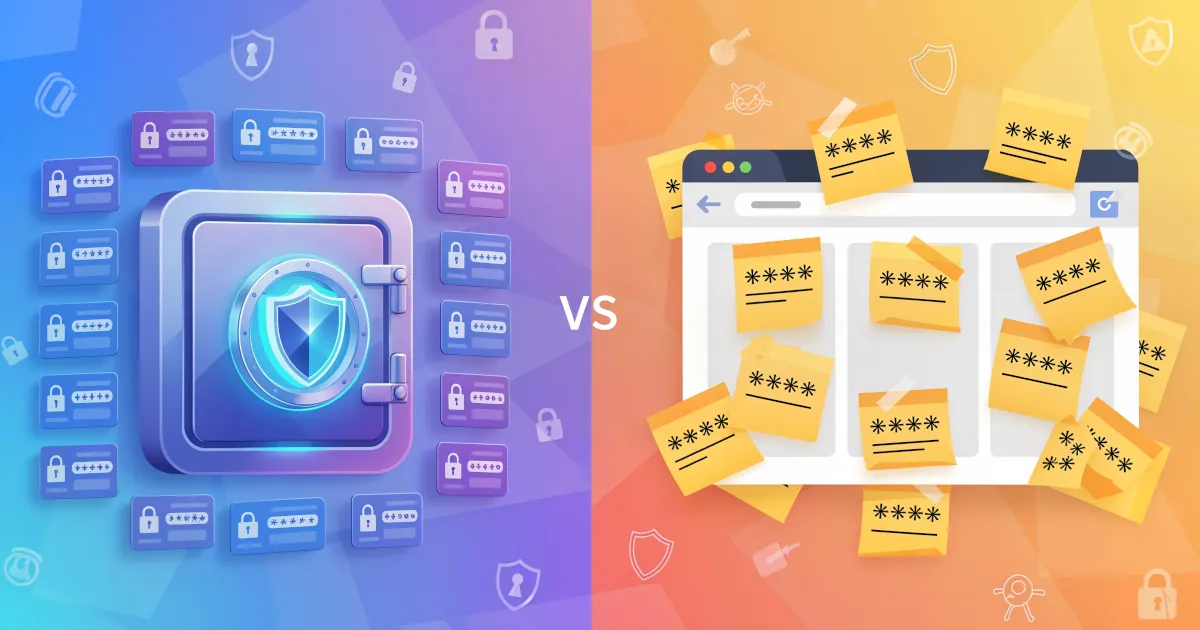
Saving passwords in your browser is like stuffing cash in your car’s glove box. A password manager is more like a safe.
Why You Should Use a Password Manager (Instead of Just Autofill)
1. Strong, Unique Passwords on Every Site
Browser autofill often just saves whatever you type. If that’s:
Password123- Your dog’s name
- Or the same password on multiple sites
then your browser will reuse that weak password everywhere.
Password managers, on the other hand, are built around password generation:
- Unique password per site
- Long, random combinations that are impossible to guess
- You never have to remember them
If one site gets hacked and your password leaks, attackers will immediately try that same password on your email, bank and social accounts. With a password manager, you stop reusing passwords.
Benefit: A big security improvement for almost no extra effort.
2. Better Protection Against Device Snooping
On many systems, browser passwords are easier to access:
- If someone gets physical access to your computer
- If malware is running under your user account
- Or if your browser settings are not locked down
Often, anyone who gets past your computer’s login screen, or enters your device password once, can view the passwords saved in your browser.
A password manager adds an extra layer:
- Everything is encrypted with a master password
- The manager locks automatically after a period of inactivity
- Even if someone opens your browser, your vault can still be locked
A browser leaves your passwords in something like an open drawer. A password manager keeps them in a locked safe inside your device.
Benefit: If your device is stolen or left logged in, your accounts are still much better protected.
3. Protection Against Phishing
Phishing means fake websites trying to trick you into entering your password.
Browser autofill checks less strictly. It may autofill on lookalike domains like:
paypa1.cominstead ofpaypal.comg00gle.cominstead ofgoogle.com
Some browsers are getting better, but many are still designed more for convenience than for strict checking.
Password managers, however, usually:
- Only autofill on exact matching domains
- Don’t autofill if the URL looks off or unfamiliar
- Won’t mistake a phishing site for the site it copies
So if you click a fake login link, your password manager often fills in nothing. Treat that as a clear warning that something’s wrong.
Benefit: Using your password manager’s autofill gives you built-in phishing protection.
4. Works Across All Browsers and Devices
If you only use one browser on one device, autofill might feel fine. Most people use more than that:
- Laptop at home
- Work computer
- Phone
- Maybe a tablet
If you use Chrome at work, Safari on your phone and Edge on your gaming PC, your saved passwords end up split between browsers and out of sync. Or you end up emailing passwords to yourself, which isn’t ideal.
A password manager:
- Syncs your vault across all your devices
- Works through browser extensions, desktop apps and mobile apps
- Keeps one single, consistent list of logins
You’re no longer locked into one browser just because it “knows” your passwords.
Benefit: Flexibility and convenience, no matter what device or browser you’re using.
5. More Than Just Passwords
Browsers mostly store only login credentials. A password manager can secure much more:
- Credit card details
- Bank accounts and routing numbers
- Wi-Fi passwords
- Software license keys
- Private notes (passport details, recovery codes, etc.)
All of this is encrypted and protected under your master password.
Benefit: One secure place for all your sensitive data, so it isn’t scattered across notes apps, emails and screenshots.
6. Better Sharing (Without Sharing the Password)
You might need to share access to:
- A Netflix account with family
- A business tool with a coworker
- Your Wi-Fi with a guest
With browsers, you end up giving them the password itself. Then they can use it, change it or pass it on to others.
Many password managers offer secure sharing:
- Share access without revealing the password in plain text
- Revoke access later
- Keep track of who has what
Benefit: You stay in control, even when other people need access.
7. You Remember Fewer Passwords
This sounds backward, but:
- With browser autofill, you tend to reuse simple passwords because you’re afraid of forgetting them.
- With a password manager, you only need to remember one strong master password (and maybe your email and device passwords).
The manager remembers everything else.
Benefit: Less to remember and fewer “Forgot password?” clicks. Your overall security improves too.
Is Browser Autofill Always Bad?
Not necessarily. Browser autofill is:
- Better than writing passwords on sticky notes
- Better than reusing the same 3 passwords everywhere
- Fine for low-risk accounts you don’t care much about
But for your main identity and important accounts (email, banking, social media, cloud storage), relying only on browser autofill is like locking your front door but leaving the windows open.
If you want convenience and strong security together, use a password manager.
How to Switch Without Losing Your Mind
Pick a password manager
Free options: Bitwarden, KeePass
Paid options: 1Password, Dashlane, NordPass, etc.Import passwords from your browser
Most managers let you export from Chrome/Safari/Edge/Firefox and import everything in one go.Set a strong master password
Use a long phrase you can remember, such as a sentence with a few tweaks. A random string is useless if you can’t recall it.Turn off browser password saving
Avoid confusion and duplicate prompts. Let your password manager handle it.Enable 2FA on the password manager
Add an extra layer so even if someone guesses your master password, they still can’t get in easily.
Verdict: Password Manager vs Browser Autofill
- Browser autofill: Convenient and basic. Better than nothing.
- Password manager: Also convenient, with stronger security and more flexibility. It’s designed to protect your digital life.
If your accounts matter to you, treat a password manager as a digital seatbelt. You don’t need to be a techie to wear one.