
Why You Should Use a Password Manager Today
You’ve probably heard it a hundred times:
“Use strong passwords.”
“Don’t reuse passwords.”
“Update your passwords regularly.”
Be honest with yourself about how much of that you do.
If the answer is “sort of” or “not much,” you’re in the majority. Password managers exist for that reason.
This is the plain-English case for why you should use a password manager today, without scare tactics or jargon. It covers the practical benefits and how a manager makes everyday logins easier.
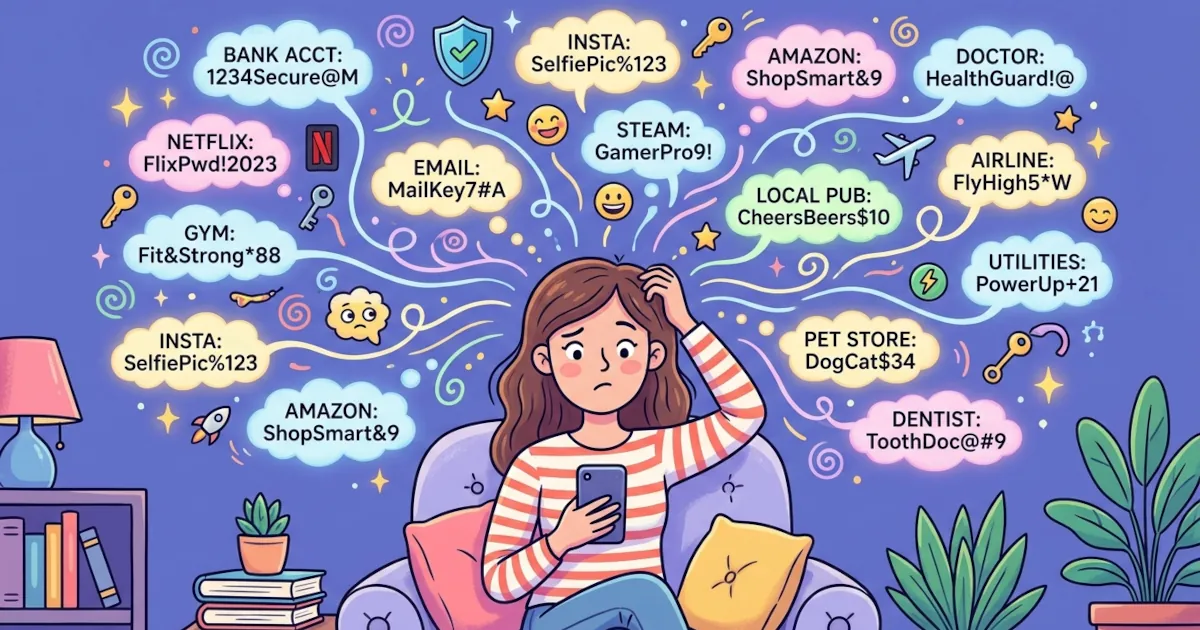
The Big Problem: Your Brain Wasn’t Built for This
“Good” password behavior supposedly requires:
- A unique password for every account
- Each password should be long and random
- You should change them if there’s a breach
- You should never reuse the same password
Now think about how many accounts you have:
- Email(s)
- Banking
- Shopping sites
- Social media
- Streaming services
- Work accounts
- Random apps you signed up for once and forgot
Realistically, you may have dozens, maybe hundreds of logins.
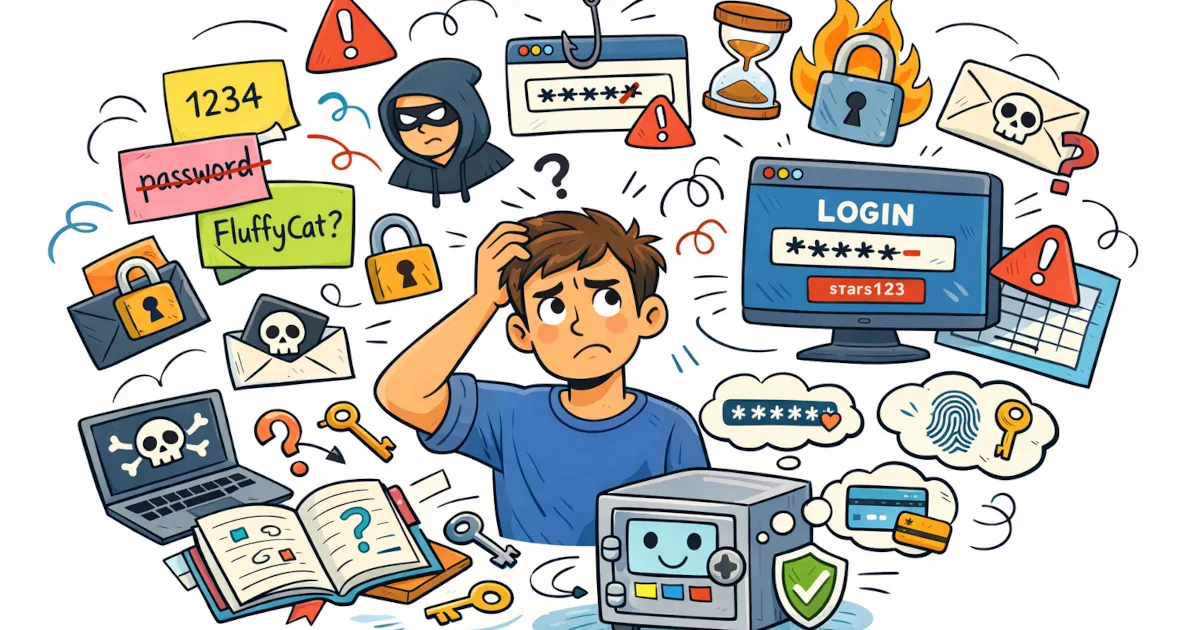
You can’t safely store and manage that many strong, unique passwords in your head. So most people do one of these:
- Reuse passwords (“Same one for Netflix, Amazon, and email, it’s fine… right?”)
- Use weak passwords (“Summer2024!”)
- Use patterns (“Password1, Password2, Password3… nailed it”)
- Write them down (notes app, sticky notes, that old notebook)
All of these are understandable. Hackers count on every one of them.
What a Password Manager Does
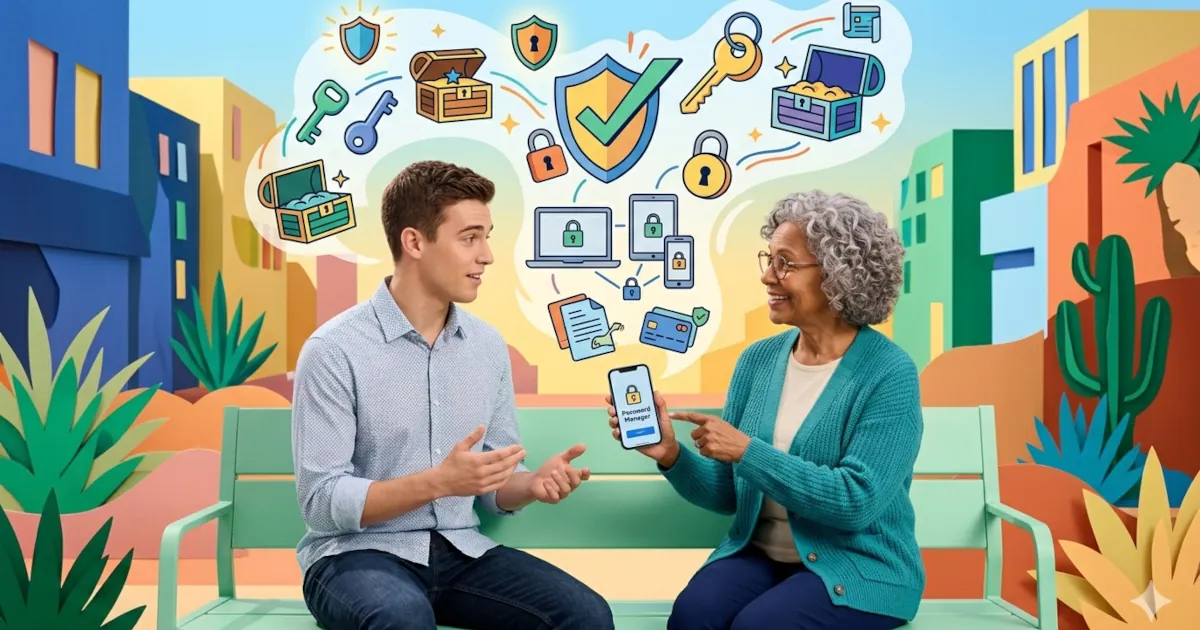
Think of a password manager as a secure, digital vault for all your logins.
You:
- Remember one strong password (called the master password)
- Open the password manager with that
- It stores, generates, and fills in all your other passwords for you
In practice, it does things like:
- Auto-fill your username and password on websites and apps
- Generate strong, random passwords that you don’t have to memorize
- Sync your passwords across your devices (phone, laptop, tablet)
- Warn you if a password is weak, reused, or involved in a data breach
So instead of trying to remember 100 passwords, you remember one and let the manager do the rest.
Reason #1: You Stop Reusing the Same Password Everywhere
This is the most important reason.
Password reuse is like using the same key for your:
- House
- Car
- Office
- Gym locker
If someone copies that one key, they get everything.
Online, it works like this:
One website you use gets hacked.
Your email and password from that site get leaked.
Attackers try that same combo on other major sites:
Email accounts
Social media
Shopping sites
Banking and PayPal
If you reused the same password, they can get into all of them.
A password manager fixes this by making every password unique, without you having to think about it. If one site is hacked, that password is useless anywhere else.
Reason #2: Your Passwords Become Strong
“Clever” passwords like P@ssw0rd! or Summer2024! feel strong because they look complicated. Attackers know those tricks. They’re built into hacking tools.
A strong password should be:
- Long (ideally 16+ characters)
- Random
- Unique to each site
Examples of good passwords the manager might create:
yX4?cK!bRCp9$Z2nlPpV8sE*1#gar!K3
You won’t remember those.
You don’t need to.
Your password manager creates and stores these for every account. You never have to see most of them. You just:
- Click “generate strong password”
- Save the login
- Let the manager fill it in next time
Reason #3: It Makes Logging In Faster
A lot of people think, “This sounds like extra steps.” In practice it saves steps.
With a password manager:
- On your phone: it suggests logins right above your keyboard, just like suggested words
- On your computer: it auto-fills login forms in your browser
No more:
- Typing long passwords
- Trying to remember which “version” you used
- Resetting your password every time you’re locked out
You open an app or website and your manager fills in the login.
Because it makes life easier, you’re more likely to keep using it.
Reason #4: You’ll Know When a Site Has Been Hacked
Even if you do everything right, websites still get hacked.
Many password managers include:
- Breach monitoring: They check your saved logins against known data breaches
- Alerts: “Your password for this site was in a leak. Change it now.”
- Security reports: Lists of weak, reused, or old passwords
So instead of hearing “There was a data breach somewhere” and shrugging, you get:
- The site that was breached
- The account affected
- What to do about it
That’s much easier to act on.
Reason #5: It Protects You From Fake Websites
A common trick attackers use is phishing:
- They send you a fake email that looks like it’s from your bank, PayPal, or a store you shop at
- The link goes to a fake website made to look the same as the site it copies
- You enter your password there and they steal it
A password manager helps with this.
It usually auto-fills only on the website the login was saved for.
It checks the exact web address. On a lookalike site the address doesn’t match, so the manager won’t fill anything in.
If your password manager doesn’t fill in a login page it normally handles, treat that as a warning sign. The site may not be the one you think it is.
Reason #6: You Can Store More Than Just Passwords
Most password managers let you store:
- Credit card details
- Bank accounts (stored for reference, with no direct access)
- Wi‑Fi passwords
- Software license keys
- Secure notes (passport numbers, insurance info, etc.)
- Two-factor backup codes
All of it is encrypted and protected by your master password.
So instead of:
- Texting your Wi‑Fi password to everyone
- Digging through old emails for a license key
- Keeping sensitive notes in a plain text file
You keep it all in one secure place that you can reach from your devices.
“But What If My Password Manager Gets Hacked?”
That’s a reasonable thing to ask.
Reputable password managers use what’s called zero-knowledge encryption:
- Your data is encrypted on your device before it’s sent to their servers
- Your master password never leaves your device
- The company can’t see your passwords, even if they wanted to
In the rare cases where password manager companies have been breached, the stolen data has been encrypted gibberish without the master password.
So two things matter most:
- Choose a strong master password
- Turn on two-factor authentication (2FA) for your password manager account
With those in place, the manager is far safer than your current system of “I’ll just remember it” plus the same few passwords everywhere.
How To Start Using a Password Manager (In Simple Steps)
You don’t have to sort everything out in one day. A simple order to follow:
Pick a reputable password manager
Examples: 1Password, Bitwarden, Dashlane, NordPass, or your browser’s built-in manager (with caution and 2FA turned on).Create a strong master password
A long, memorable phrase is best:
- Example:
cooking.on.Sundays.with.chili
- Example:
Don’t reuse a password from anywhere else.
Install it everywhere
Phone app
Browser extension (Chrome, Firefox, Safari, Edge)
Tablet if you use one
Start with your most important accounts
Email
Banking / PayPal
Cloud storage (Google Drive, iCloud, Dropbox, etc.)
Main social media accounts
Move your logins over gradually
Each time you log in somewhere, save the password to the manager
Update weak or reused passwords a few at a time
In a few weeks, you’ll notice you’re logging in faster and thinking about passwords a lot less.
Why People Use Password Managers
Security is one reason. People also use them because:
- They’re tired of resetting passwords
- They’re done reusing the same three passwords everywhere
- They like having less stress about what happens if a site gets hacked
- It’s more convenient
A password manager feels like a hassle before you try it and then becomes something you don’t want to give up.
If you care about password security and cyber safety, a password manager is one of the easiest upgrades you can make.